¶ Overview
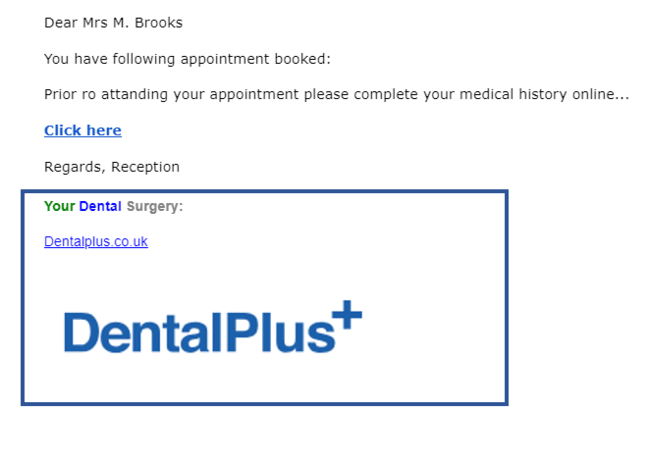
DentalPlus has pre-defined letter templates across several categories that you may use and customise. You can use these templates to produce a wide range of messages and documents. You can also change these templates with a built-in editor or Microsoft Word. In addition, you can create your own letters and save them in any category for later.
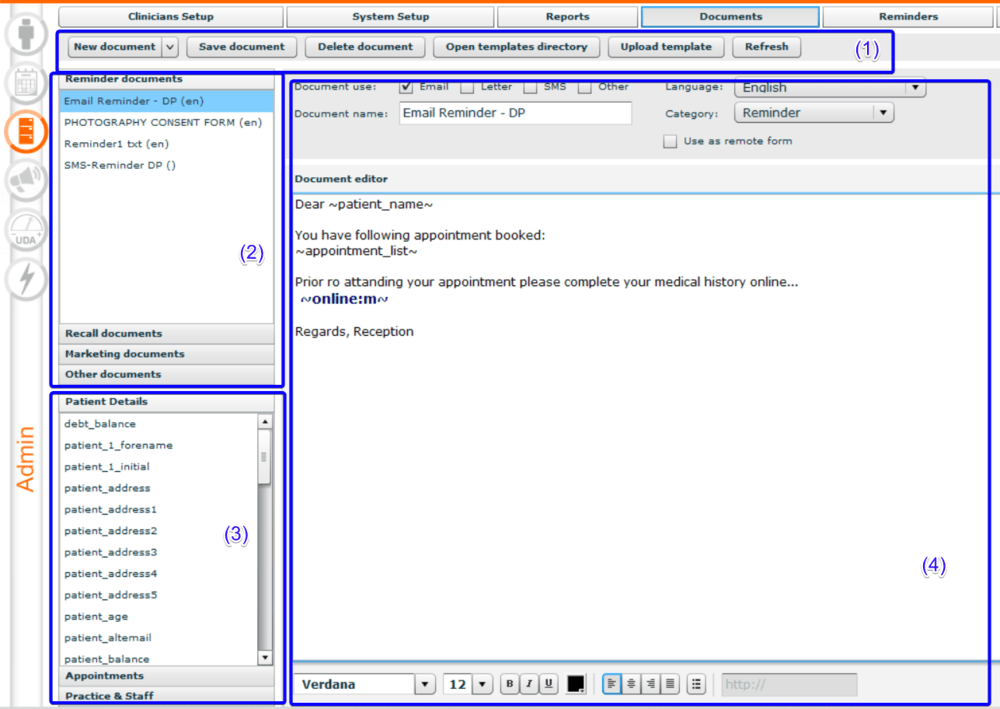
All templates can be found in the Admin→ Documents section, which is divided into four areas: Toolbar (1), Document categories (2), Mailmerge fields (3), and Documents editor(4).
(1) Toolbar allows to manipulate with templates: create, save, delete, upload them
(2) Document categories are 4 tabs with a list of all available templates (Reminder documents, Recall documents, Marketing documents, and Other Documents).
(3) You can find a list of mailmerge fields in the bottom left corner. These fields allow you to personalize communication documents by replacing them with the patient's personal data from their record.
(4) Documents editor is used for creating and editing templates
¶ Template documents
¶ SMS templates
SMS templates are pre-written messages that notify patients about their upcoming visits. They play a key role in reducing no-shows and keeping patients consistent with their oral care. These templates are easily customisable, allowing dental practices to send timely, professional reminders with minimal effort.
SMS template should be short. Basically, 160 symbols = 1 text credit.
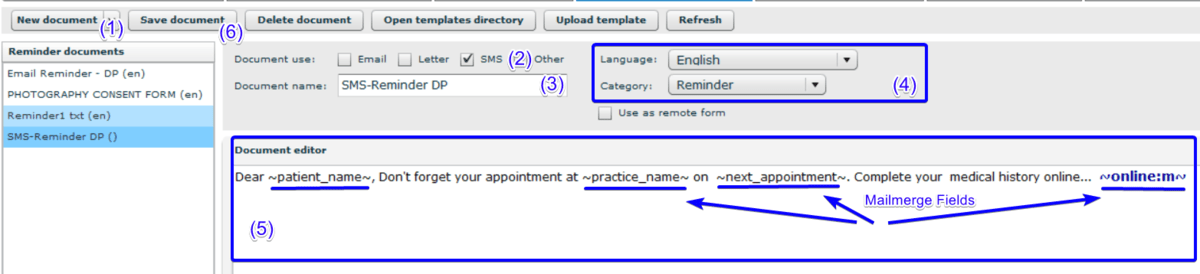
Here are the steps to create a text template:
In the Admin section → Documents
1) Click ‘New document’
2) Choose ‘SMS’ as the document type
3) Add document name
4) Select the language and category to save in
5) Add text in the Document Editor. You can type, change text style, copy-paste text from other documents, and use mailmerge fields.
6) Click ‘Save document’
Effective Dental Appointment SMS Templates
|
1. Simple Appointment Reminder Hi ~patient_name~, just a quick reminder of your upcoming dental appointment on ~next_appointment~. We look forward to seeing you soon! |
2. Reminder + Medical History Hello ~patient_name~, your dental appointment is scheduled for ~next_appointment~. Please complete your Medical History form online: ~online:m~ |
3. Rescheduling-Friendly Reminder Hi ~patient_name~, this is a friendly reminder about your upcoming appointment on ~next_appointment~ . Can’t make it? No worries—just let us know and we’ll find a better time. |
4. Promotional Reminder with Appointment Hey ~patient_name~, your appointment is set for ~next_appointment~. Ask us about our current teeth whitening promotion—a brighter smile might be closer than you think! |
|
5. 24-Hour Appointment Reminder Hello ~patient_name~, just a reminder that your appointment is tomorrow at ~next_appointment~. If you need anything beforehand, don’t hesitate to contact us at [Contact Info]. |
6. Missed Appointment Follow-Up Hi ~patient_name~, we missed you today! If you'd like to reschedule your appointment, just reply to this message or call us. We’d love to see you soon. |
7. Patient Feedback Request Thank you for visiting, ~patient_name~! We’d really appreciate your feedback. Please take a moment to share your thoughts here: [Feedback Form Link]. Your opinion helps us improve! |
8. Post-Surgery Follow-Up Reminder Hi ~patient_name~, this is a reminder for your post-surgery check-up on ~next_appointment~. We’ll review your healing and address any concerns. |
|
9. Follow-Up Appointment Request Hi~patient_name~, we hope you're doing well! It’s time to schedule your next dental check-up. Book now using this link: [Online booking Link]. See you soon! |
10. New Patient Welcome + Reminder Welcome, ~patient_name~! We're excited to meet you at your first appointment on ~next_appointment~. Feel free to reach out if you have any questions beforehand. |
11. Follow-Up & Feedback Combo Hi ~patient_name~, thank you for your recent visit! Your next appointment is on ~next_appointment~. We’d also love to hear your feedback here: [Link]. |
12. Reminder + Directions Hi~patient_name~], your appointment is set for ~next_appointment~. If you need help finding us, click here for directions: [Map Link]. |
¶ Email templates
An email template is created in the same way as an SMS template, with the only difference being that the 'Document Use' should be set to Email. Unlike SMS messages, emails have no character limits, giving you the flexibility to include more detailed information, images, and formatting as needed.
Emails have no character limits.
¶ How to add a clickable link
Clickable links can be added to the email and SMS templates.
- Add the website name or ‘<<CLICK HERE>>’ to the document template
- Select this text using your mouse
- The field for the link will become active in the bottom toolbar
- Add or paste your website address
.png)
Following this, whenever you hover your mouse over this text, a clickable mouse pointer will appear, allowing you to click and go to the website.
¶ Mailmerge fields
| Description | Internal field | RTF Field | |
| Patient's name e.g. Mr Smith | ~patient_name~ | [[Patient Name]] | |
| Patient's title e.g. Mr | ~patient_title~ | [[Title]] | |
| Patient's 1st forename e.g. John | ~patient_1_forename~ | [[First Name]] | |
| All patient's forenames e.g. John Al | ~patient_forenames~ | [[Patient Forenames]] | |
| Patient's surname e.g. Smith | ~patient_surname~ | [[Surname]] | |
| Patient's 1st initial e.g. J | ~patient_1_initial~ | [[Patient 1st Initial]] | |
| All Patient's initials e.g. J.A. | ~patient_initials~ | [[Patient Initials]] | |
| A list of all upcoming appointments | ~appointment_list~ | [[Appointment List]] | |
| A list of selected appointments | ~appointments_select~ | [[Selected Appointments]] | |
| Patients next appointment | ~next_appointment~ | [[Next Appointment]] | |
| Patients previous appointment | ~previous_appointment~ | [[Last Appointment]] | |
| Practice Name | ~practice_name~ | [[Practice Name]] | |
| Practice Address | ~practice_address~ | [[Practice Address]] | |
| Practice Phone | ~practice_telephone~ | [[Practice Phone]] | |
| Practice Email | ~practice_email~ | ||
| Name of the patient's default denti | ~clinician_name~ | [[Dentist Name]] | |
| Today's date | ~current_date~ | [[Current Date]] | |
| Patient Address | ~patient_address~ | [[Patient Address]] | |
| Appointment Reason | ~appointment_reason~ | [[Appointment Reason]] | |
| Appointment Duration | ~appointment_duration~ | [[Appointment Duration]] | |
| Appointment Notes | ~appointment_notes~ | [[Appointment Notes]] | |
| Appointment Clinician | ~appointment_clinician~ | [[Appointment Clinician]] | |
| Patient DOB | ~patient_dob~ | [[dob]] | |
| List of appointments with date and | ~appointment_list_dt~ | [[Appointment List DT]] | |
| Patient record number | ~patient_id~ | [[Patient ID]] | |
| e.g. Dentist/Hygienist | ~appointment_clinician_type~ | [[Clinician Type]] | |
| Date appointment needs confirmin | ~confirm_date~ | [[Confirm Date]] | |
| 1st Line of address | ~patient_address1~ | [[Address 1]] | |
| 2nd Line of address | ~patient_address2~ | [[Address 2]] | |
| 3rd Line of address | ~patient_address3~ | [[Address 3]] | |
| 4th Line of address | ~patient_address4~ | [[City]] | |
| 5th Line of address | ~patient_address5~ | [[County]] | |
| Postcode | ~patient_postcode~ | [[Postcode]] | |
| Home phone number | ~patient_homephone~ | [[Home Phone]] | |
| Mobile phone number | ~patient_mobilephone~ | [[Mobile Phone]] | |
| Work phone number | ~patient_workphone~ | [[Work Phone]] | |
| Home email address | ~patient_homeemail~ | [[Home Email]] | |
| Alternative email address | ~patient_altemail~ | [[Alt Email]] | |
| Always shows the postcode | ~patient_postcode2~ | [[Postcode2]] | |
| Financial balance for patient | ~patient_balance~ | [[Balance]] | |
| Last appointment failure | ~last_fta~ | [[Last FTA]] | |
| Last cancelled appointment | ~last_cancelled~ | [[Last Cancelled]] | |
| The clinician the report is for | ~report_clinician~ | [[Report Clinician]] | |
| Balance without minus sign - used | ~debt_balance~ | [[Debt Balance]] | |
| Patients age in years | ~patient_age~ | [[Patient Age]] | |
| Patients previous appointment dat | ~previous_appt_date~ | [[Last Appt Date]] | |
| The type of clinician the report is fo | ~report_clinician_type~ | [[Report Clinician Type]] | |
| Referring Dentist Name | ~referring_dentist_name~ | [[Referring Dentist Name]] | |
| Referring Dentist Address | ~referring_dentist_address~ | [[Referring Dentist Address]] | |
| Referring Dentist Phone | ~referring_dentist_phone~ | [[Referring Dentist Phone]] | |
| Referring Dentist Mobile | ~referring_dentist_mobile~ | [[Referring Dentist Mobile]] | |
| Referring Dentist Email | ~referring_dentist_email~ | [[Referring Dentist Email]] | |
| Referring Dentist Address1 | ~referring_dentist_address1~ | [[Referring Dentist Address1]] | |
| Referring Dentist Address2 | ~referring_dentist_address2~ | [[Referring Dentist Address2]] | |
| Referring Dentist Address3 | ~referring_dentist_address3~ | [[Referring Dentist Address3]] | |
| Referring Dentist Address4 | ~referring_dentist_address4~ | [[Referring Dentist Address4]] | |
| Referring Dentist Address5 | ~referring_dentist_address5~ | [[Referring Dentist Address5]] | |
| Referring Dentist Postcode | ~referring_dentist_postcode~ | [[Referring Dentist Postcode]] | |
| List of appointments with date tim | ~appointment_list_dtc~ | [[Appointment List DTC]] | |
| List of appointments with date, tim | ~appointment_list_dtcr~ | [[Appointment List DTCR]] | |
| Duration of the next appointment o | ~next_appointment_duration~ | [[Next Appt Duration]] | |
| Date of last examination | ~last_exam_date~ | [[Last Exam Date]] | |
| Current treatment dentist | ~treating_dentist~ | [[Treating Dentist]] | |
| Signature from remote form filling | ~signature~ | ||
| Patients gender | ~patient_gender~ | [[Gender]] | |
| Remote Medical History form URL | ~remote_mh~ | [[Remote MH]] | |
| Remote Covid screening form only | ~remote_covid~ | [[Remote Covid]] | |
| Remote deposit request only | ~remote_payment_deposit~ | [[Remote Payment]] | |
| Send a payment request for any a | ~remote_payment_outstanding~ | [[Remote Payment Outstanding]] | |
| When an appointment is rearrange | ~rearranged_appointment~ | [[Rearranged Appointment]] | |
| Remote FP17PR form only | ~remote_fp17pr~ | [[Remote FP17PR]] | |
¶ RTF-document templates
If you have any Word documents DentalPus allows you to use in as document templates. The only condition: it should be saved in RTF format
Here are the steps to create a RTF-document template:
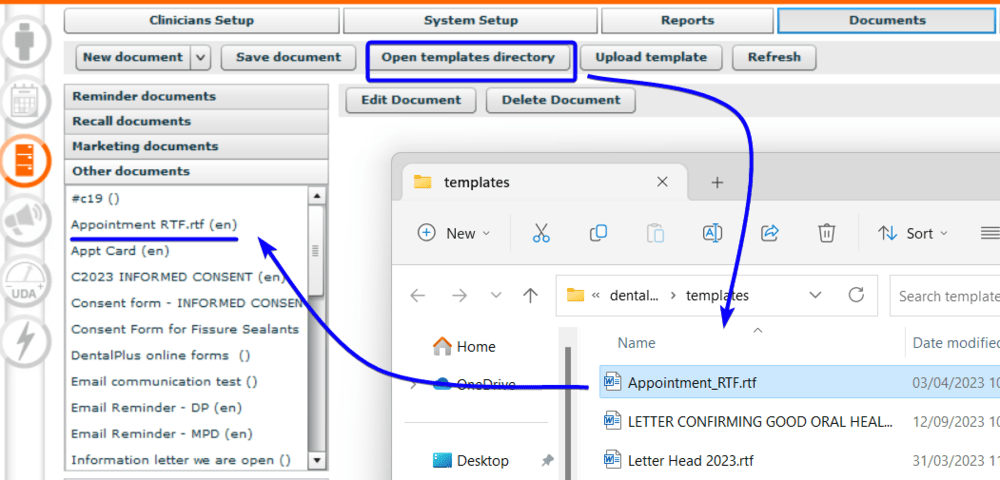
- Create a document using Microsoft Word and save it as an .RTF file. The document can include pictures, mailmerge fields, and text.

2. Go to the Admin → Documents section and click ‘Templates Directory’.
3. ‘Templates’ folder opens. Copy and paste rtf.file
4. Templates are stored under the ‘Other documents’ category
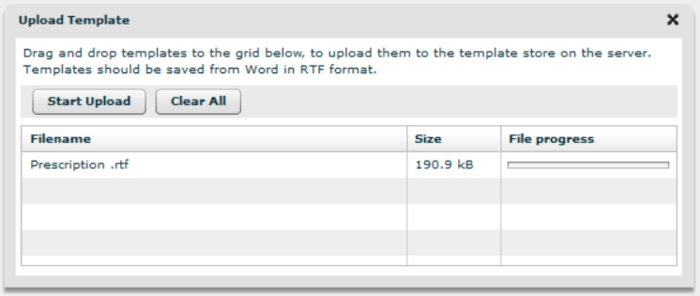
‘Upload template’ functionality allows to upload rtf-template to your server for later use. It copies step (2) of the previouse instruction.
- Click the ‘Upload Template’ button
- Drag and drop any file you plan to upload
- Click the ‘Start Upload’ button
- The file will be stored in the ‘Templates’ folder on your server
¶ Consent form templates
There are two different sorts of consent forms. One form can be changed before signing (for example, a dentist can add a tooth number), while another is sent based on a predefined template.
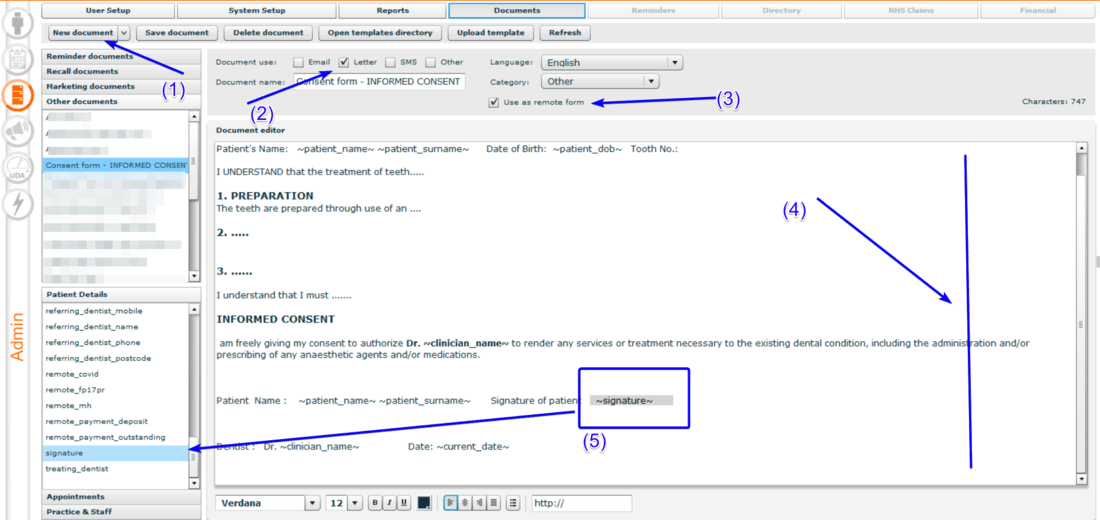
¶ Editable consent form:
In the Admin Section → Documents
- Create new documents
- Tick document use ‘Letter ’
- Tick ‘Use as remote form’
- In the Document editor type, copy/paste the consent form
- Add by double-clicking the mail merge field from the left-hand side called ‘Signature’ (Patient Details list)
- Save template
¶ Read-only consent document with pictures
The newest addition to the DentalPlus toolkit is available: the enhanced Consent Form with pictures. Designed with simplicity and efficiency in mind, this feature empowers you to create customizable forms tailored to your practice's unique needs.
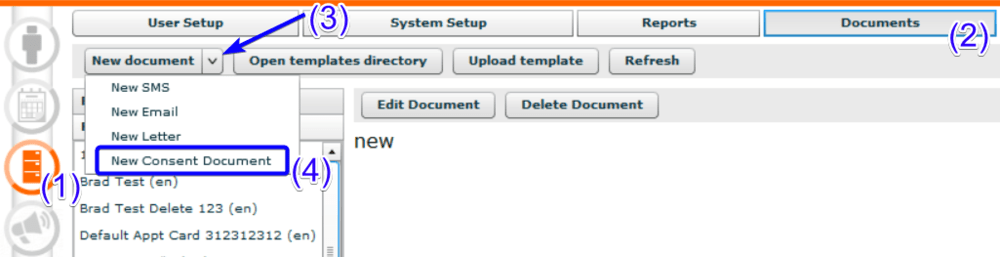
- Go to Admin Section (1) → Documents (2)
- Click on the arrow next to the ‘New Document’ button (3)
- Click on the ‘New Consent Document’ (4)
- An editor opens in your default Internet browser
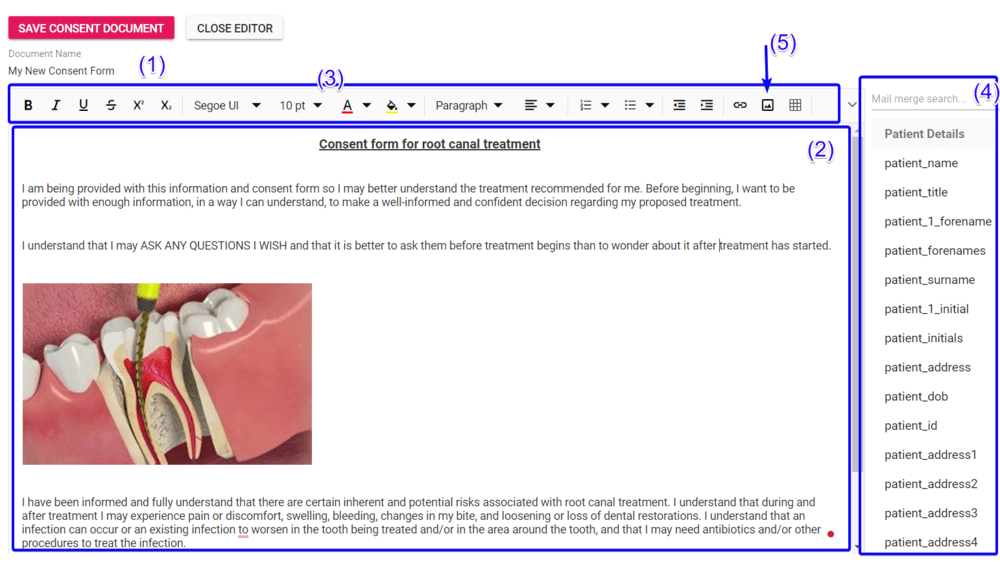
- First of all, add the name of the form on the top left corner of the screen (1)
- Either type or copy-paste the text of the consent form (2)
- Use the text toolbar (3) to quickly access various text formatting options.
- The list of mailmerge fields along with the search box can be found on the right-hand side of the screen. (4)
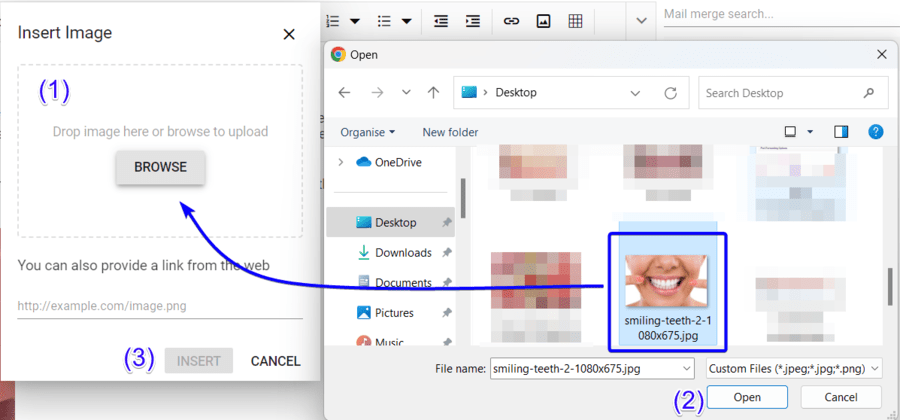
- Click on the Image icon (5) or press Ctrl+Shift+I to display insert image pop-up
- Click ‘Browse’ (2) and choose the image (2) or drag and drop it into the pop-up area
- By clicking ‘Insert' (3) this image will be added to the document.
***. The picture size is important. If the resolution of the picture is larger than 1000*1000px, it will not be added to the document. In this case, you can use any Online Resizer.
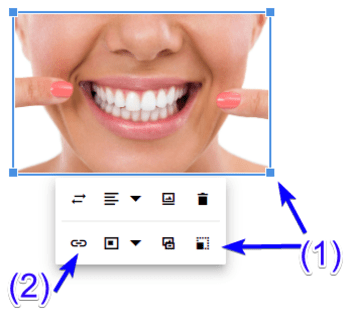
To change the picture, left-click on it. This will highlight the picture and display the toolbar.
(1) To resize the picture, click on the bottom right corner and hold down the mouse button while moving the mouse. Once you are happy with the size, release the mouse button. Alternatively, you can click on the 'Change picture' icon to update the picture size manually.
(2) To insert a link, click on the 'link' icon and enter the link. Click 'Update' to save the changes.
- Add the mailmerge field ~signature~ to your consent form. It will allow the patient to sign this form.
- You can also add the doctor's signature in the form of a prepared picture.
- Finally, click ‘ Save Document’ at the top left corner.
- The consent form template is ready to use now.
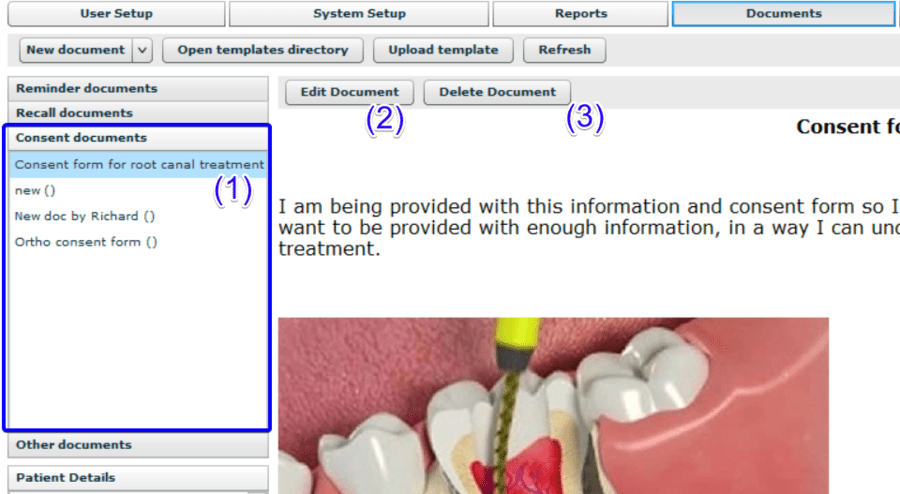
The location of New Consent Documents is Admin Section → Documents → Consent Documents.
- Click Refresh to display the latest changes.
- Highlight the form by left-clicking on it (1)
- Change the document by clicking the ‘Edit Document’ (2) or ‘Delete Document’ button (3) .
¶ Using document templates
Templates save time and effort by providing a framework for creating new letters, emails and text messages.
How to create an Email/SMS/Letter using a template :
- Go to the Patient Record → Communications section
- Click ‘New Email’/'New SMS'/'New letter'
- Click the ‘Load’ dropdown and select a template
- Message text appears. All mailmerge fields will be replaced by patient and practice details. The web links will be clickable.
.png)
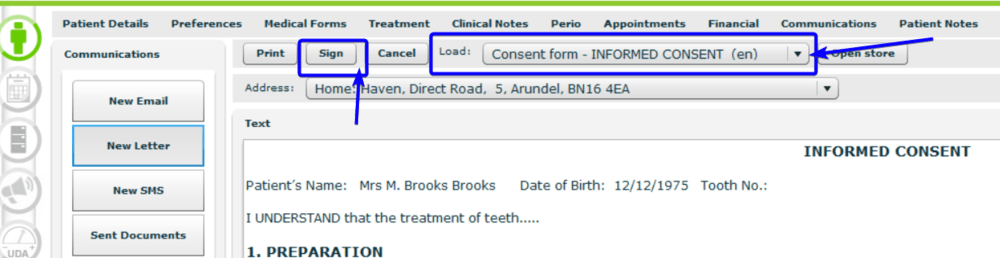
How to create a consent form using a template:
- Go to the Patient Record → Communications section
- Click 'New letter'
- Click the ‘Load’ dropdown and select a template of consent form
- Message text appears. All mailmerge fields will be replaced by patient and practice details.
- Click ‘Sign’ and send this form to your tablet
¶ System templates
DentalPlus allows you to configure a large number of system messages using templates.
- SMS reminders - short appointment notifications. Location: Admin→ System Setup → Auto Reminders
- Email reminders - extended appointment notifications that usually contain links on different online forms. Location: Admin→ System Setup → Auto Reminders
- Payment request email/sms - payment reminders that are sent to patients in debt. Location: Location: Admin→ System Setup → Document settings → Online
¶ Email signature
To make your emails more engaging and memorable, DentalPlus lets you create a custom email signature. You can include images, formatted text, and clickable links for a polished, branded look. This helps reinforce your brand and adds a professional touch to all communications.
Where to find it: Admin section → System Setup → Email Signature
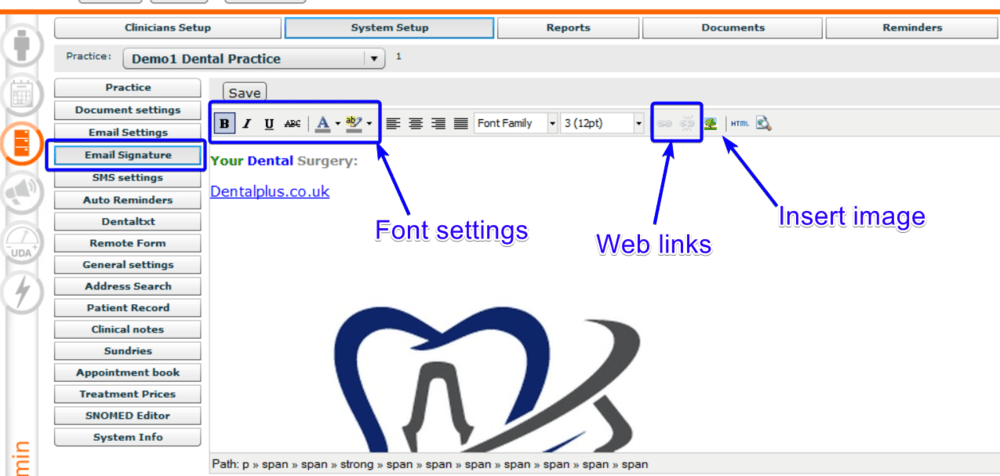
The screen is divided into two sections: the toolbar and the editor. You can type or paste text. The toolbar lets you change text style, add web-links and pictures.
1) How to change font style…
- Type or copypaste any text
- Select it using the mouse
- Click on the font style icon and select the options
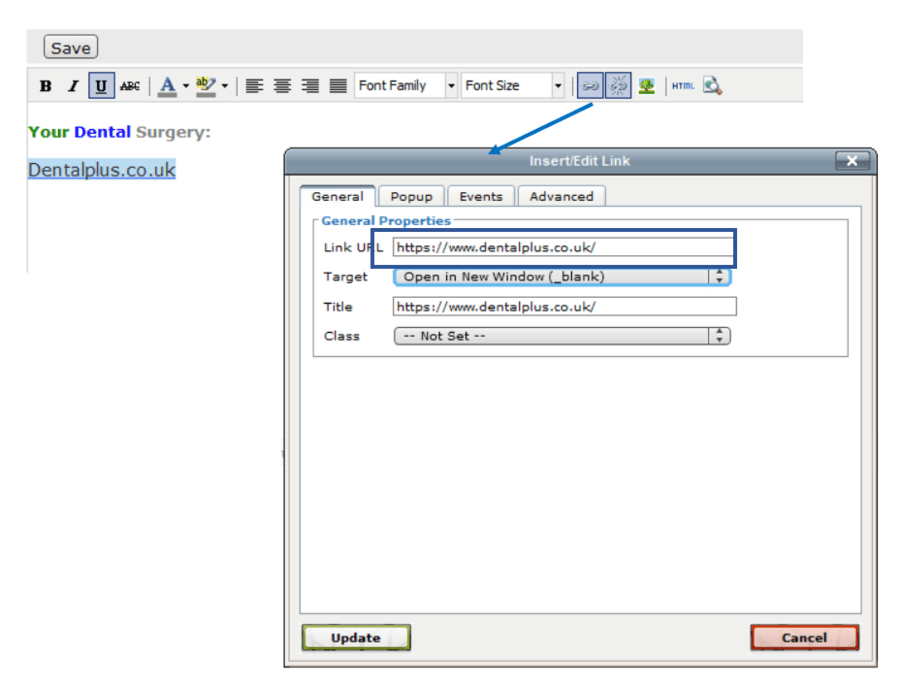
2) How to add a clickable web link…
- Type or copypaste any text
- Select it using the mouse
- Click on the ‘Chain’ icon
- in the popped-up window add the URL: practice website address
- Click ‘Insert’
3) How to insert an image…
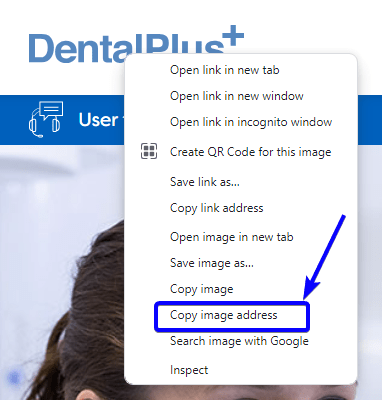
As an image, you can choose any one already posted on your website.
- Go to your website and choose any image
- Right mouse click on this image
- Select ‘Copy image address’ from the context menu
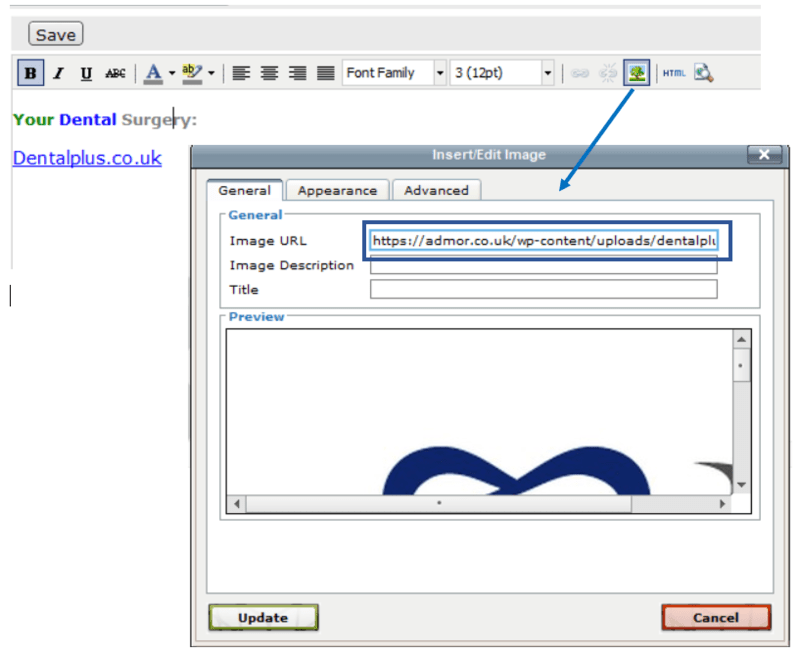
- Navigate to your email signature editor and click on the 'Tree' icon
- Paste the copied image address
- Click insert
- Your email signature will now feature the image you selected
As a result, your patient will receive all emails with a signature.