¶ Paperless Dental Practice
Nowadays dental practices use tablets for signing different forms for several reasons, all of which contribute to increased efficiency, patient satisfaction, and overall practice management.
DentalPlus and the Digital Signature app allow you to become a paperless practice and capture patient data electronically using a Tablet.
.png)
Using Dentalplus and tablets, Patients can:
✓ Update their contact details
✓ Complete and sign Medical History Forms
✓ Review and sign Treatment Plans
✓ Sign consent forms
✓ Sign FP17PR forms
Once completed, the information is encrypted and sent directly to your server, with the details saved on the DentalPlus patient record. The feature complies with CQC regulations and provides the tool to take the next step in becoming completely paperless.
¶ How to start with Remote Forms
- Turn on the Tablet and connect it to the internet
- Download the ‘DentalPlus Remote Forms’ application from the Amazon App Store
- Configure the application
- Use preinstalled Digital forms or create your own consent forms
- Send the form to the tablet
*** We would recommend using an Amazon Fire 10 Tablet. It has excellent value for money, is convenient in size, and makes a good quality signature. Also, the program code is always up-to-date for the Amazon App Store.
¶ Tablet Setup
On your TABLET
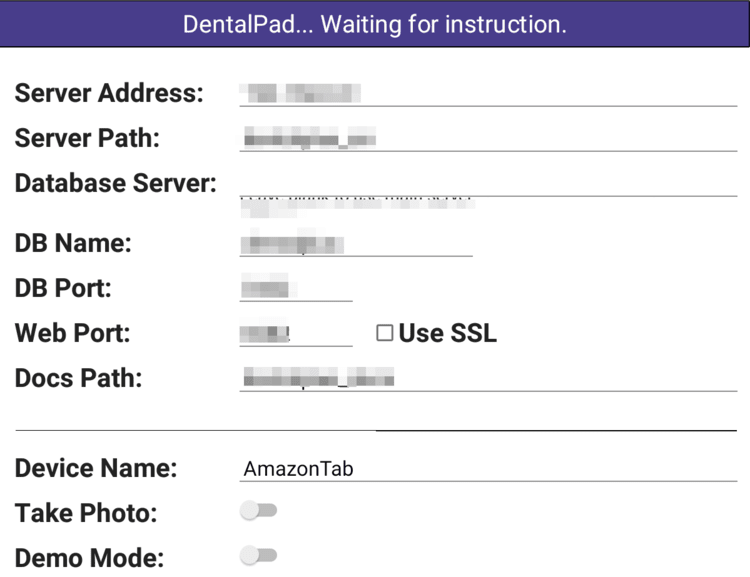
Once the application is installed to the Tablet you will see the first screen
- Click ‘CONFIG’ and go to settings.
- Please call 01903 899933 or email dentalplus.support@admor.co.uk . DentalPlus team will assist you with server settings
- Choose Device Name: for example Nexus9
On your PC
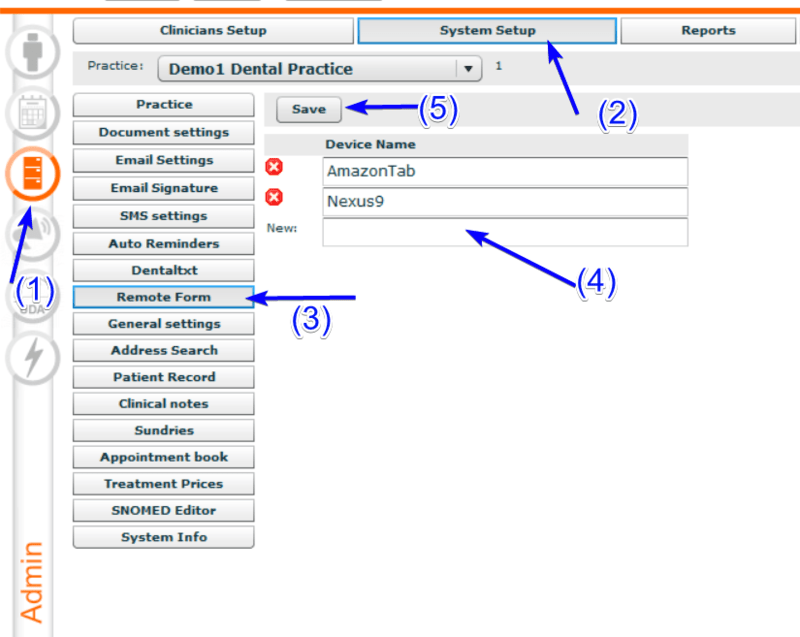
- After the tablet is set up you will need to go into DentalPlus on your PC: Admin Section > System setup > Remote forms
- In this section enter the same device name you entered on the device
- Click Save
If the tablet has been successfully connected it will say “No form set”
.png)
The application version is in the left bottom corner.
Remote forms will now wait for you to send a request from the main DentalPlus Client.
*** If the tablet doesn’t connect it will say “can not connect to server”. In this case recheck all settings, tablet name and internet connection.
¶ Remote Forms - Sending a request
Once you have configured your device, it will tell you ‘There is no form set’
DentalPlus contains a variety of different forms that can be signed on the tablet.
¶ Update Patient Details
On your PC:
- Search a Patient and open Patient Record
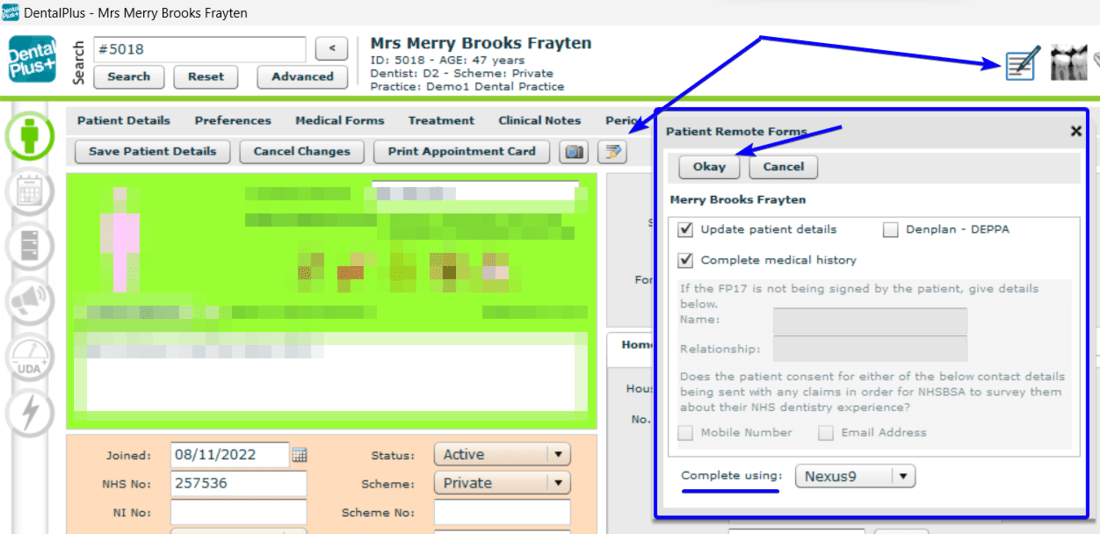
- Click 'Pen' icon and ‘Patient Remote Forms’ window will appear.
- You can now select the forms you’d like the patients to fill :
1) Update Patients Details
2) Complete Medical history
3) FP17PR forms are also for NHS patients
- Make sure select the tablet from the drop-down menu called COMPLETE USING. If only one tablet is present at the practice this will be filled in automatically.
- Click Okay. The form have now been sent to the Tablet .
On your Tablet :
- Click Continue to move onto the next step
- A preview page will appear showing ‘Forms to be completed’: Patient Details
.png)
- Pass tablet to the Patient for updating details
- Once the screen ‘ Thank you for completing the forms’ appears ask patient to return tablet
*** If the take Photo feature is enabled on the tablet you will be able to take picture this will be stored on the front of the patient’s card on Dentalplus you do also have an option to skip this step
*** If you chose both forms to complete ( Patient Details and Medical History) the next form will appear
- Medical History will appear once the patients finish updating details and click continue
- Tick all necessary fields and add details
- Click Continue and signature box will pop up.
- Do signature and finish completing the form.
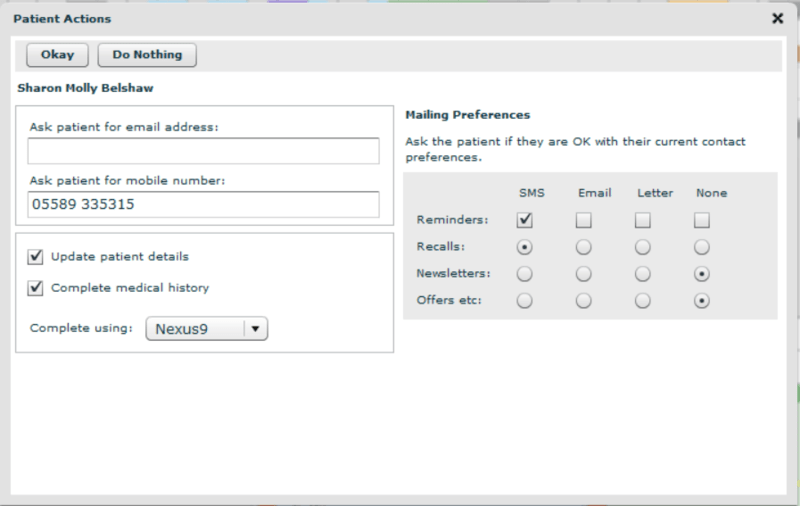
You can also update details in the Appointment book
- Right-click at a patient and set the appointment to "Waiting room"
- The Patient Actions window will appear.
- Choose form to complete
- Choose Tablet and click Okay
¶ Update Medical History
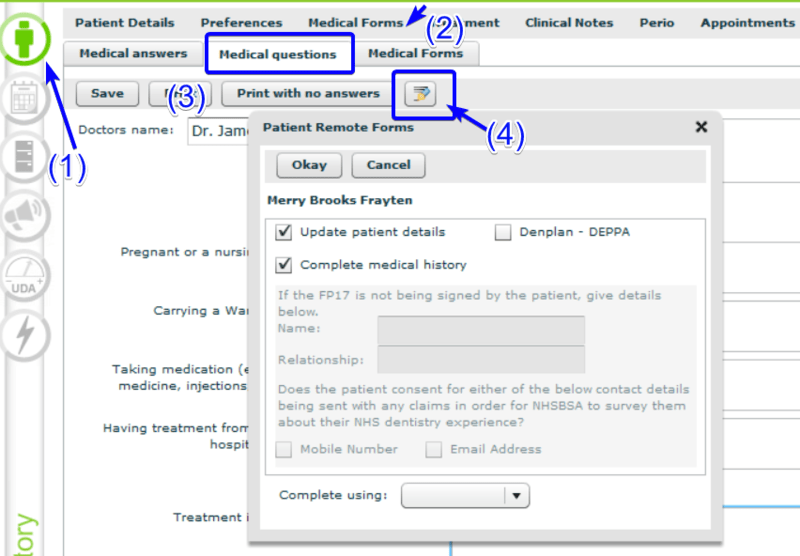
Go to Patient Record →Medical Forms top menu →Medical Questions tab
Click 'Pen' icon and ‘Patient Remote Forms’ window will appear.
¶ Sign Treatment Plan
Treatment Plan can be signed on the Tablet in a few steps
On your PC
- Go to the Patient Record →Treatment Section
- Create or load treatment plan
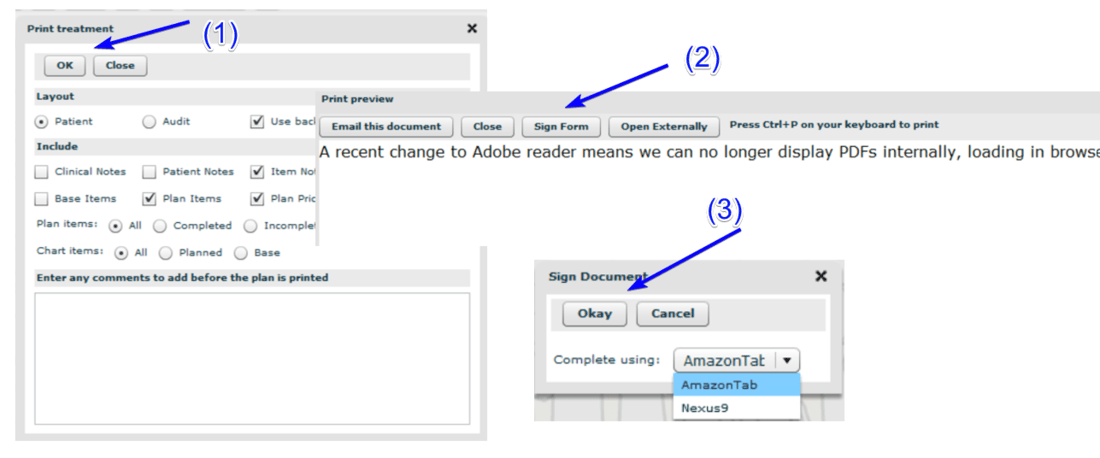
- Click ‘Print’ button
- In the pop-up 'Print treatment' click OK. Treatment plan will be opened externally.
- Come back to the DentalPlus and click ‘Sign Form’ button in the ‘Print preview’ window
- The pop-up ‘Sign Document’ will appear. Choose tablet and click Ok.
On your TABLET
- Click Continue to move onto the next step. Pass the tablet to the Patient
- A preview page will appear showing ‘Forms to be completed’:Treatment Plan
- View the Treatment Plan and click Continue
- Sign treatment Plan
- Give the tablet back
¶ Consent Remote Forms
DentalPlus allows to use different consent forms.
There are 3 steps for using consent forms: Create, Send, Sign
DentalPlus+ . How to create a New Consent Form…

¶ Create Consent Form
On your PC
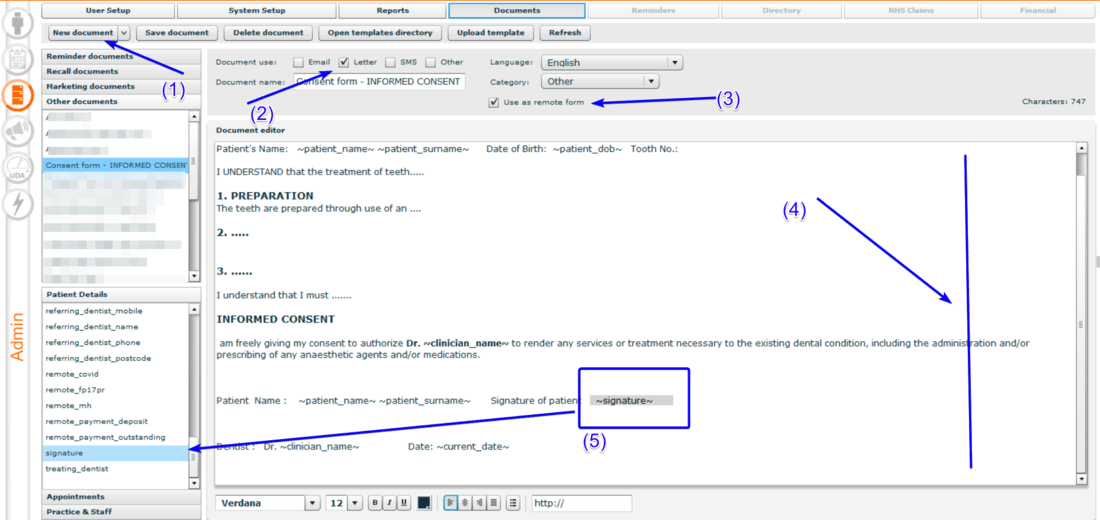
Admin Section > Documents > Document editor
- Create new documents
- Tick document use ‘Letter ’
- Tick ‘Use as remote form’
- In the Document editor copy and past your consent form into here
- Select the mail merge field from the left-hand side called ‘Signature’ add this to the form by double click
¶ Send Consent Form
On your PC
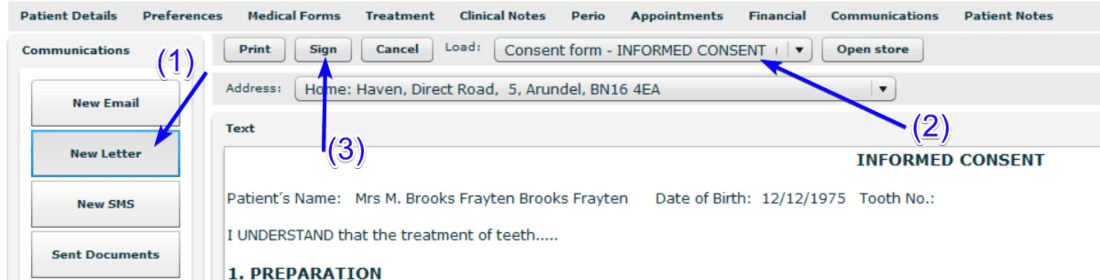
In the Patient Record →Communication
- Create a New Letter
- Load the form template
- Click ‘Sign’
- Choose the tablet and click ' Okay'
¶ Sign Consent Form
On your TABLET
- Click Continue to move on to the next step. Pass the tablet to the Patient
- A preview page will appear showing ‘Forms to be completed’:Consent Form
- View the Consent form and click Continue
- Sign the Form
- Give the tablet back
¶ How to find signed forms
| Updated Patients details | Patient record |
| Signed Medical Histories | Patient Details > Medical Forms > Medical Forms > Filled Medical history |
| Signed FP17PR | Patient Details > Medical Forms > Medical Forms > Signed FP17PR |
| Signed Treatment Plan | Patient Details >Communications > Sent Documents |
| Signed Consent Form | Patient Details >Communications > Sent Documents |