¶ Online booking system
An online booking system offers multiple benefits for dental practices. It enhances patient convenience by allowing appointments to be scheduled anytime, including outside office hours, and reduces administrative workload by automating the scheduling process and minimising phone calls. The system also helps prevent double bookings and errors, ensuring a smooth and efficient patient flow. By making appointment management easier and more accessible, it improves the overall patient experience while presenting the practice as modern and patient-focused.
¶ Online booking for Patients
From the patient’s perspective, the online booking system works as follows: patients access the system through a link, where they can either log in to their online account or register with the practice. They only need their email address and date of birth, and a temporary password will then be sent to their email, allowing them to log in.
¶ New patient registration
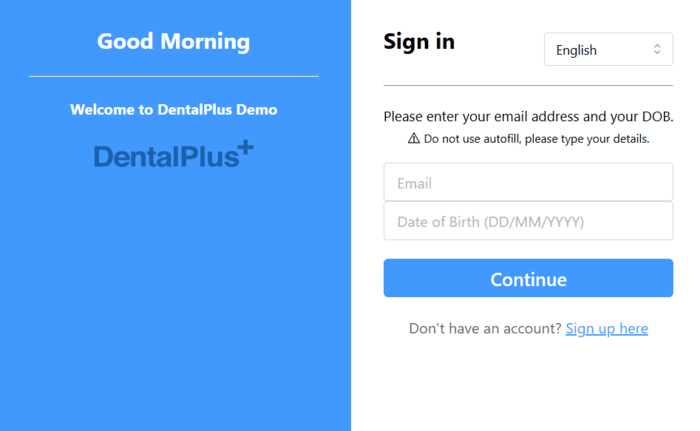
- Go to the Online Booking System web page.
- Click ‘Sign Up’
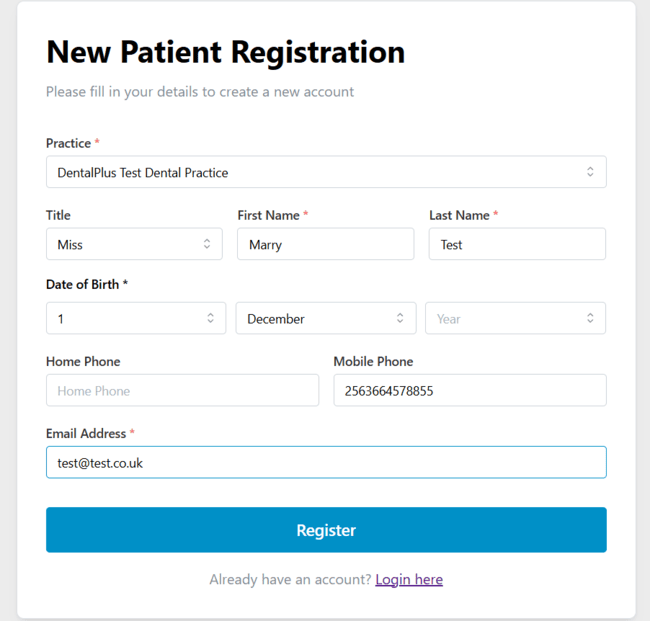
3. Enter details and click ‘Register’
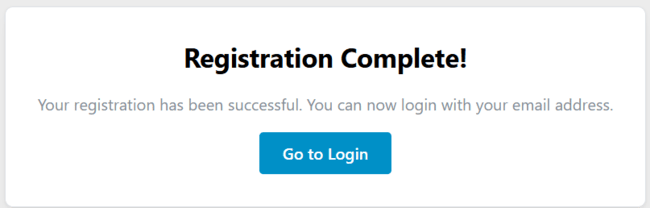
4. The new patient is now ready to log in as an existing user to the system.
¶ Existing patients log in
The system uses the patient’s email address and date of birth for identification.
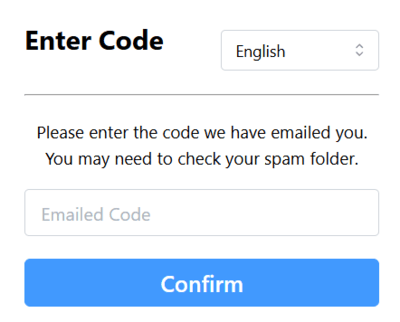
- To log in, enter the email and date of birth linked to the patient record, then click “Continue”
- A one-time code will be sent to the patient’s email—simply enter this code and confirm to access the account.
¶ Home screen
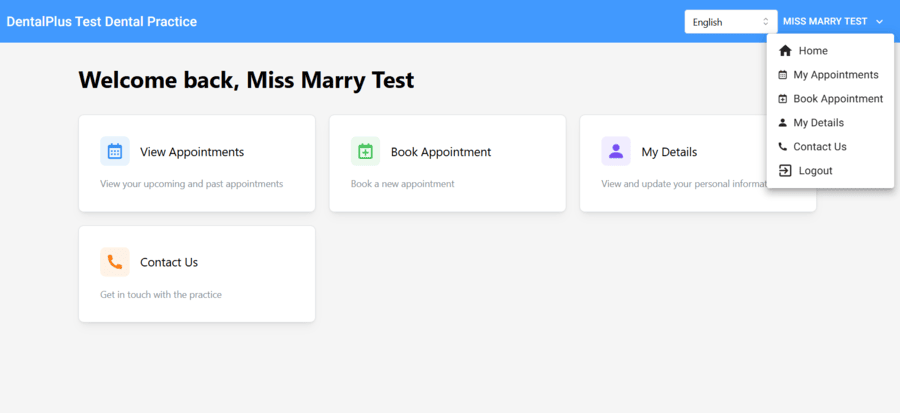
Once logged in, patients can view appointments, book new ones, and update their personal details online.
- My Details – displays patient information and allows updates.
- View Appointments – shows all scheduled appointments.
- Book Appointment – enables booking a new appointment and paying any required deposit.
- Contact Us – provides the practice’s contact details.
¶ My details
- Click ‘My details’
- Update them
- Click ‘Save’ to confirm
- To return to the home screen, click the 'Back' or ‘Home’.
¶ Viewing appointments
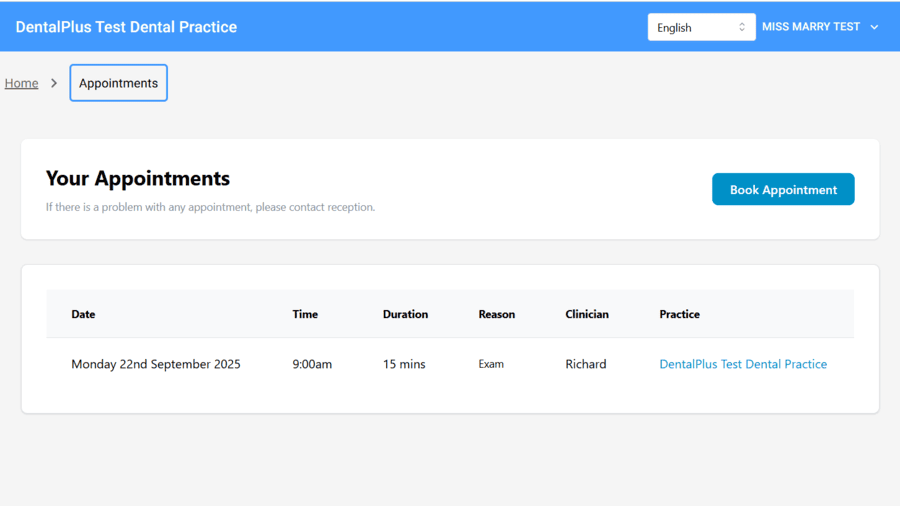
- Click ‘ View appointments’
- A list of scheduled appointments will appear on the screen.
¶ Booking appointments
- Log in to the online booking system
- Click the ‘Book appointment’ icon on the home screen or in the ‘View appointments’ section
- Follow the hints to select:
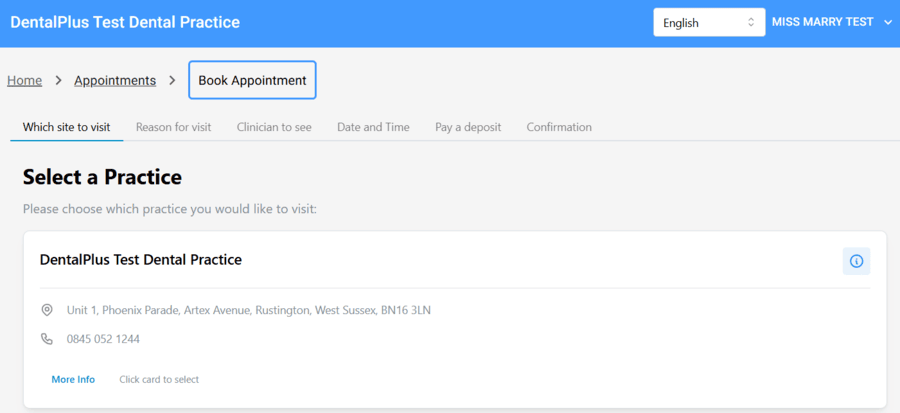
- Site to visit. If your practice has multiple branches, all of them will be displayed.
- Reason for visit. Appointment reasons shown on the screen can be customised in the main DentalPlus Client
- Clinician to see
- Date and time
- Pay a deposit. In some cases, a deposit may be required before the booking is confirmed. Payments are handled securely through Stripe, an external financial service. To enable this, please contact the DentalPlus support team.
- Get a confirmation.
- If no deposit is required, the booking is confirmed immediately and automatically appears in the Appointment Book in your practice diary. It will be marked as an online booking and shown with provisional status.
- If a deposit is required and paid, the payment record will also be added to the patient’s financial records.
¶ Configuration settings
Users with administrative permissions can manage appointment reasons, descriptions, and deposit amounts in the Admin section.
¶ How to set a reason
In the Admin → System Setup→ Appointment Book
- Go to the ‘Appointment Reasons' tab
- Create a new online booking reason or edit an existing one
- Each reason has a configuration icon next to it—if online booking is enabled, you’ll see a yellow pen.
- Click on the 'Gear' icon to see settings.
.png)
5. From the 'Online Booking Config' screen, user can:
- Allow online booking
- Update the label
- Adjust the deposit amount.
- Update description
- Assign specific clinicians and set different appointment durations if needed.
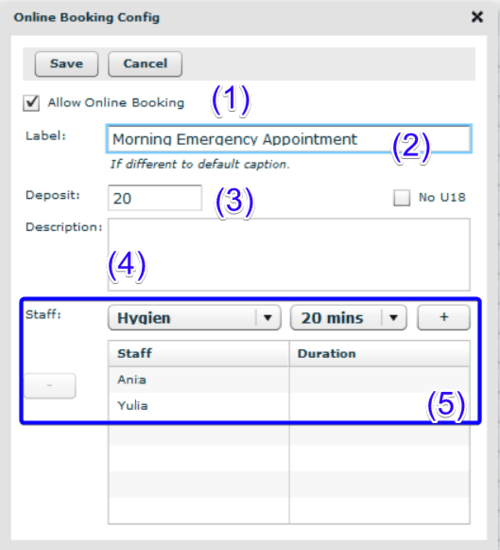
To add a clinician: select them from the 'Staff' drop-down, set different appointment durations if needed and click '+'.
To remove a clinician's association with this reason, select their name from the list and click '-'.
6. Click ‘Save’ to apply changes.
¶ Dentist availability online
Our next step is dentist availability. We need to make sure the working hours of these dentists are open for online booking. This is managed in:
Admin → User Setup → Working Hours
Here you can:
- Create a specific time slot.
- Enable online booking for an entire day.
- Restrict dentists from booking if a dentist is assigned to multiple appointment reasons, but should not be available for one of them
¶ How to create an online time slot
In the Admin → User Setup
- Select a clinician from the list
- Open the ‘Working hours/Holidays’ tab
- Click 'New'
- Select the start and end date, time, and days.
- Tick the ‘Online Booking’ box.
- Click ‘Save’.
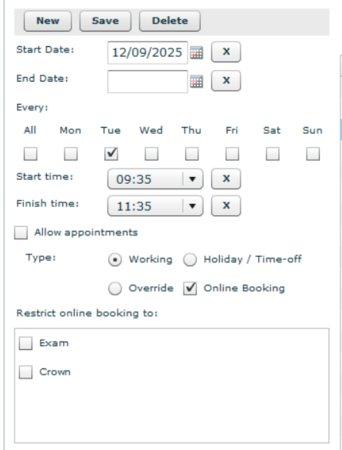
In this scenario, online booking will be available only on Tuesdays from 9:35 to 11:35 a.m.
¶ How to enable online booking for an entire day
In the Admin → User Setup
- Select a clinician from the list
- Open the ‘Working hours/Holidays’ tab
- Select the necessary working hours record
- Tick the ‘Online Booking’ box.
- Click ‘Save’
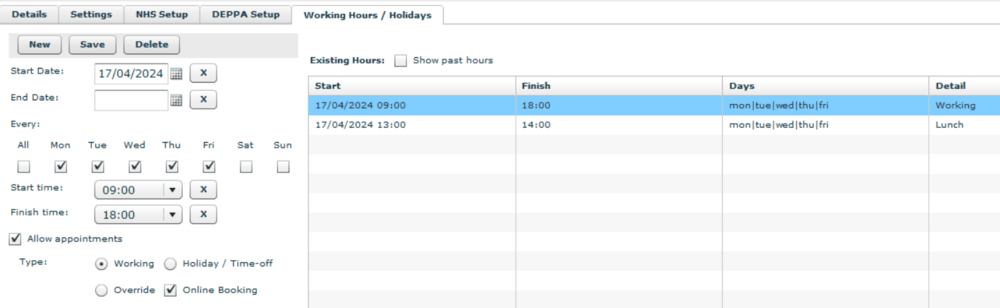
In this case, online booking will be available Monday through Friday from 9:00 to 18:00.
¶ How to change an online time slot
In the Admin → User Setup
- Select a clinician from the list
- Open the ‘Working hours/Holidays’ tab
- Select the necessary time slot
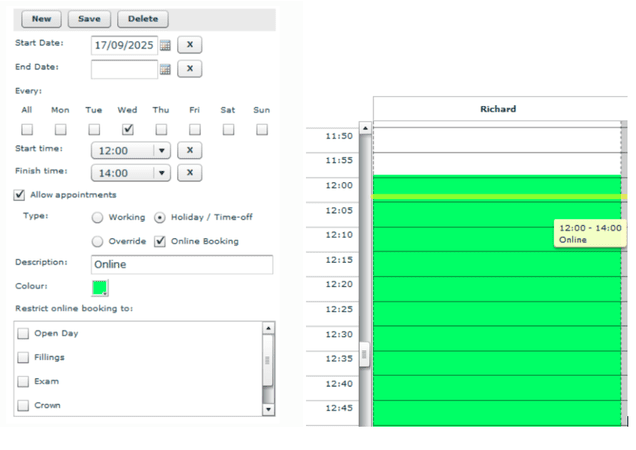
- Make any modifications to the left pane, such as dates, times, and colour.
- Click ‘Save’ to apply changes.
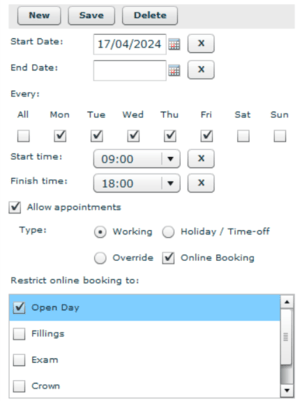
→ If a dentist is assigned to multiple appointment reasons but should be available for only one of them, you can restrict to here as well—just select the option and click Save.
→ To highlight a time slot in the appointment book with colour, pick 'Holiday/Time off', provide a description and colour, and ensure that 'Allow appointments' is checked.
¶ Multilingual options
The latest version of the online booking system allows practices to highlight clinicians who speak additional languages, making it easier to accommodate patients with specific language needs.
How it works…
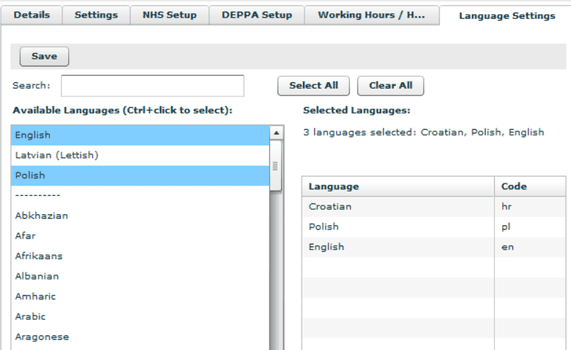
1. In Admin → User Setup → User → Setup → Language Settings, indicate the languages spoken by each dentist.
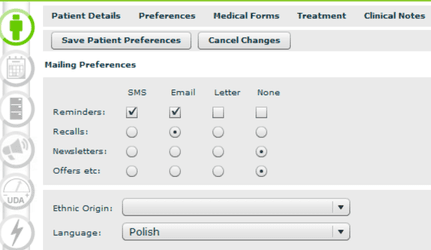
2. In the Patient Record → Preferences, select the patient’s preferred language.
3. When the patient logs into the online booking system and starts scheduling an appointment, the system will display only the available dentists who speak that language. If no matching clinicians are available, the system will show all other options.
This function is primarily intended to match patients and clinicians based on language preferences. While the interface will be translated, appointment reasons and clinical details will remain in English.