¶ Clinicians and schedule
Up to 25 clinicians may be added to the Appointment book screen.
You can manage clinician views setting at the Clinicians subsection in the left bottom corner of the screen.
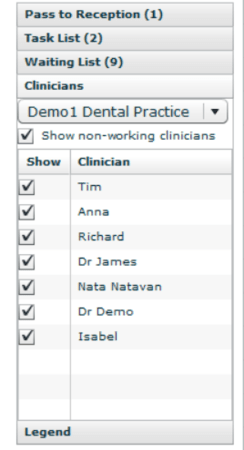
*** Once logged in first time new user will see blank Appointment book.
You will see Clinician schedule in the Appointment book if he has appropriate setting in this window.
If the field ‘Show non-working clinicians’ is unticked clinician with no appointments will not be viewed in the appointment book.
¶ Double click an appointment
There are 2 options in the system if you double click the appointment in the Appointment book.
- pop-up window appears with appointment and patient details. This variant is useful for receptionists.
- patient record opens. We found this option is the best for dentists
For changing these settings :
- Go to the Admin section → Clinicians setup
- Choose Clinician
- Open ‘Settings’
- Change ‘Appointment book double-click:’
.png)
¶ Appointment book settings
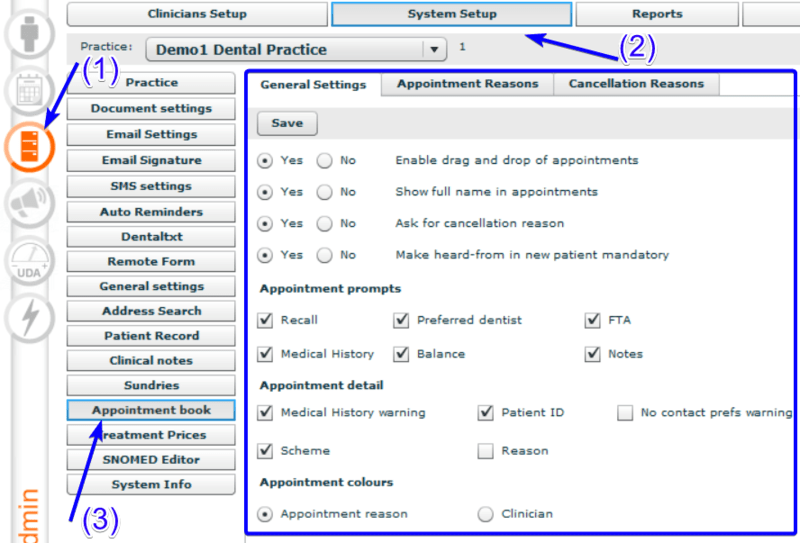
Appointment book has different setting that can be changed in the Admin section
Admin →System Setup→Appointment book
¶ Appointment prompts
Appointment prompts section helps to set different pop up messages when you are making an appointment.
If all these fields are ticked you will see messages about recalls, preferred dentist, patient medical history, minus balance , notes and failure attending an appointment.
¶ Appointment colours
There are 2 color schemes that can be used in the system.
1) Appointment reason. Each reason has a separate color. You can add and change reasons in the Appointment reasons Tab
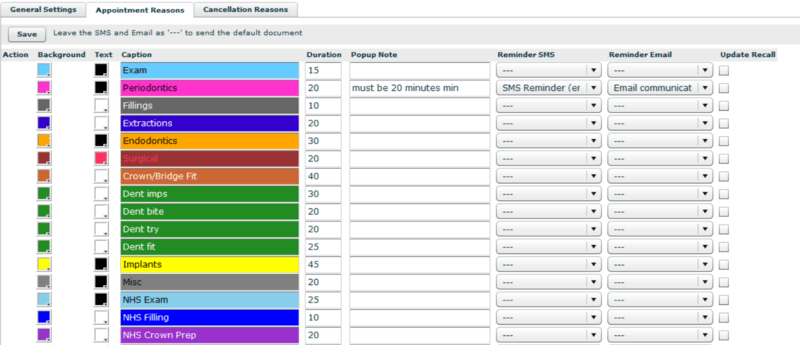
- You can set an appointment duration, important pop up notes and templates for reminders.
- You can add new appointment reason at the bottom of the list.
- Appointment reasons can't be deleted . You can rename the reason if it isn't used in the practice.
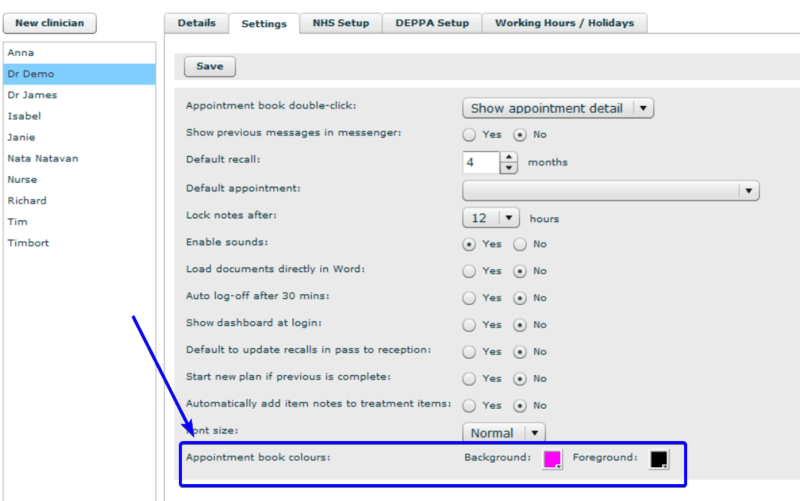
2) By Clinician. Each clinician has his own colour in the system.
You can change these settings in Admin section→Clinicians Setup→Clinician→Settings
¶ Cancellation reasons
You can manage cancellation reasons in the in the Admin section →System Setup→Appointment book
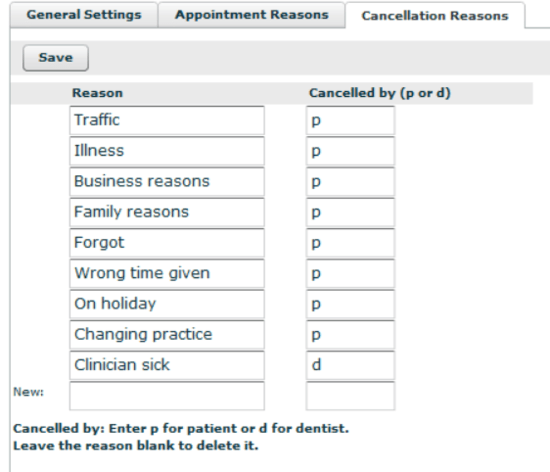
*** Leave the reason blank to delete it.
¶ Colours of patient journey
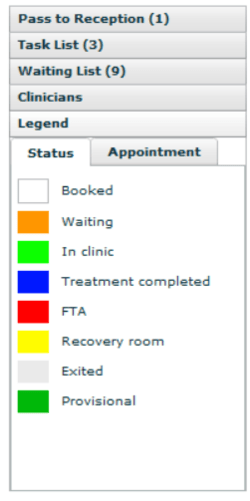
Current status of the patient in the clinic has different colours. You can manage this setting at the Legend subsection in the left bottom corner of the screen.
¶ Reminder settings
Reminder settings can be managed within Admin.
To set a default document, simply click on ‘Default SMS doc’ or ‘Default email doc’.
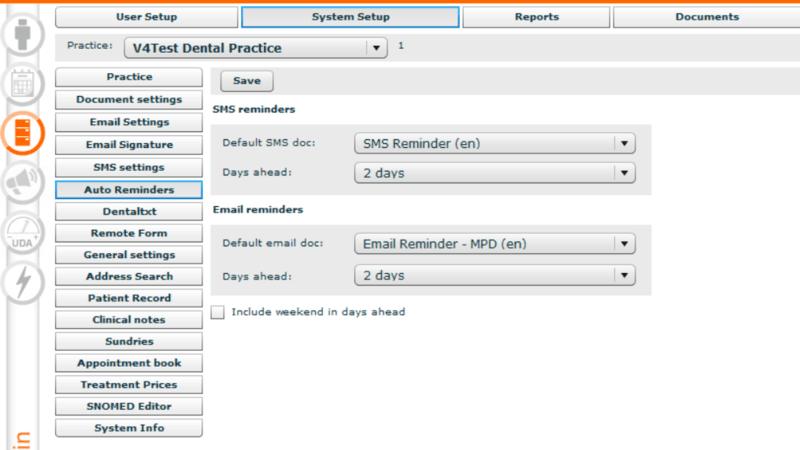
To set days ahead click on ‘Days ahead’ and choose the number.
*** To include weekends in the days ahead count, single left click “Include weekend in days ahead”.
When complete single left click “Save”.