¶ Installation on Windows
¶ Step 1 Install Adobe Air
To proceed with the installation, please ensure that Adobe Air is installed on your personal computer, click here for the download
¶ Step 2 Download D+setup from your server
- In your web browser, go to http://[[****]]/dentalplus_air/php/. For assistance, call 01903 899933 or email dentalplus.support@admor.co.uk to speak with the DentalPlus team.
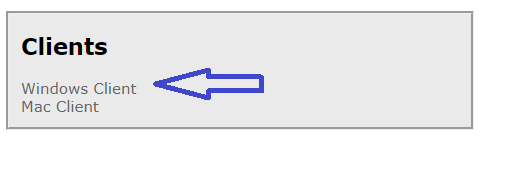
- To download the Windows Client program, click the download link.
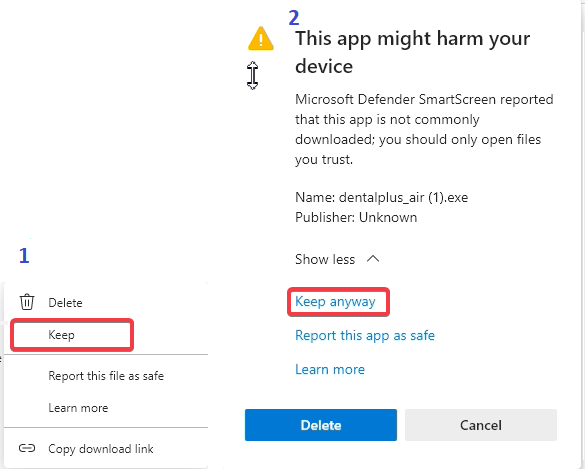
3. When downloading, you may receive a Windows warning stating that "Dentalplus_air" was blocked. In this case, click on the three dots, click "Keep" and then "Keep anyway".
¶ Step 3 Install the program for Windows Client
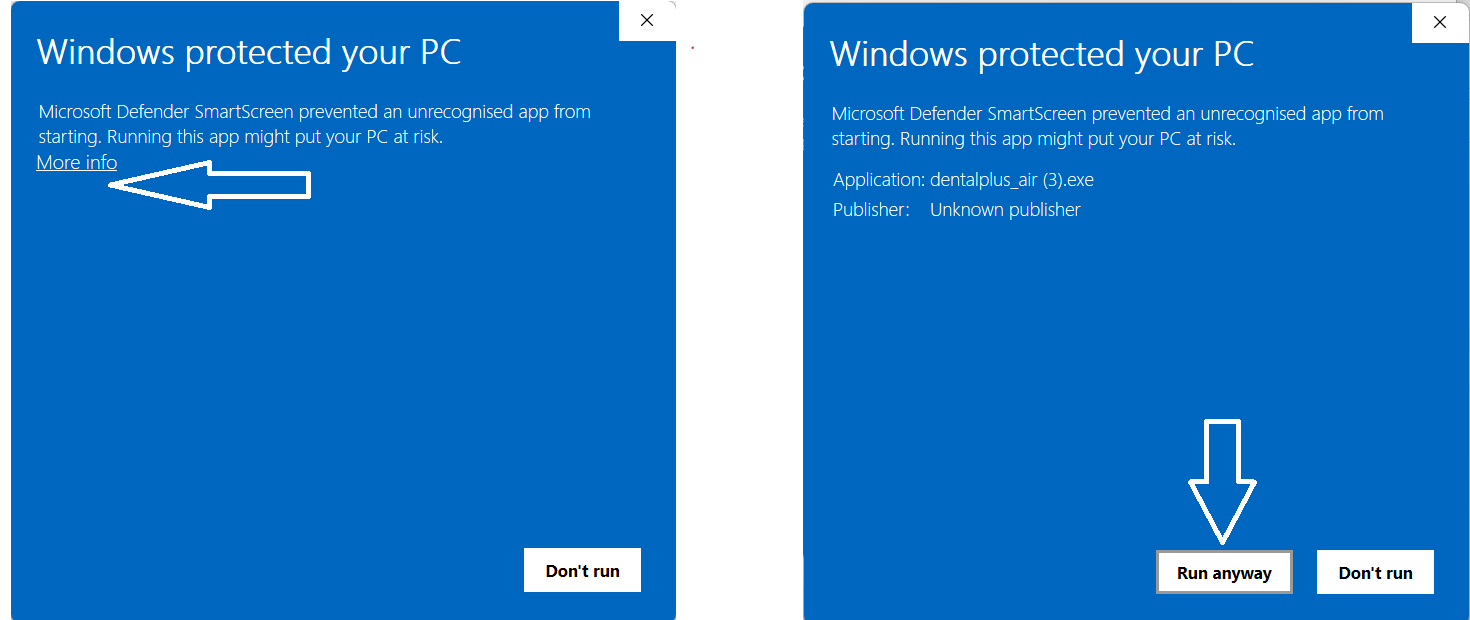
Double click on Dentalplus_air.exe. Click More info and Run anyway
Once the program is installed, a configuration screen will appear.
¶ Step 4 Configuration Details for DentalPlus
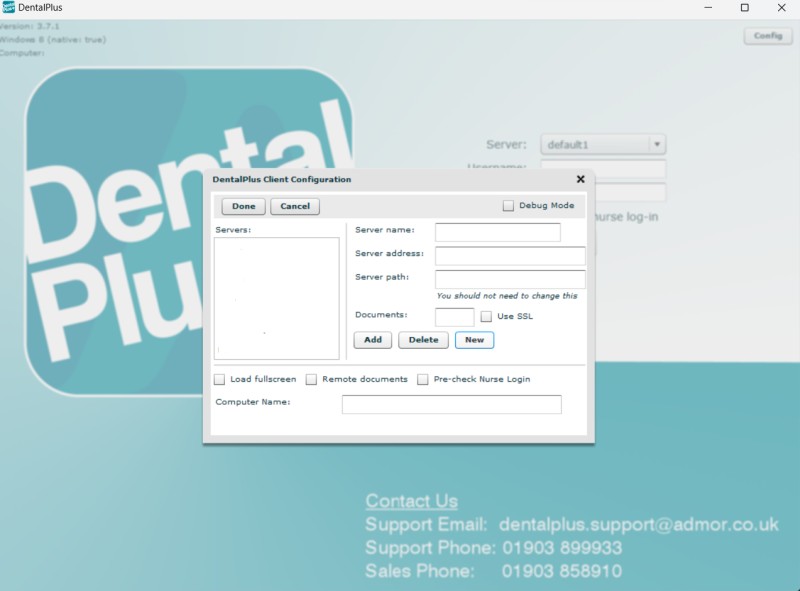
- In the server name, enter “Default”
- In the server address, enter “ [[****]] with your server address”
- Server Path will automatically be filled in when clicking in the box
- Click Add
- Click load Full screen
- Click Done
¶ Step 5 Log in DentalPlus
The program will restart and provide you with a login prompt
¶ Step 6 Link to the Imaging system
Please call 01903 899933 or email dentalplus.support@admor.co.uk . The DentalPlus team will assist you.
¶ Installation on MacOS
¶ Step 1: Install Adobe Air
To proceed with the installation, please ensure that Adobe Air is installed on your PC.
1. Click here for the download
2. Double-click the AdobeAir.dmg file after downloading. If an error warning appears during installation, refer to the tips below.
¶ Step 2: Download D+setup
1) Follow this link and install the latest version.
2) Click Download
3) Extract the app
3) Move it to the desktop.
¶ Step 3: Install the program for MacOS Client
1. Right-click DentalPlus and select Open.
2. A warning message might appear. If it says ‘Move to the bin’ or ‘Cancel’ click “Cancel”.
3. Then right-click the DentalPlus program again. It should now give you the option “OPEN” or click Privacy & Security, scroll down and click the ‘Open Anyway’ button to confirm your intent to open or install the app.
4. Depending on the OS version, you may need to go to System Settings, Privacy & Security, and allow Dentalplus. More info.
4. DentalPlus login prompt will appear on the screen
¶ Step 4: Configuration Details for DentalPlus
1. When the DentalPlus program loads, you will see a blank config screen
2. Add server details and click ‘Done’ . Please call 01903 899933 or email dentalplus.support@admor.co.uk and DentalPlus team will assist you with this
¶ Step 5: Log in DentalPlus
The program will restart and give you a login prompt
¶ Step 6: Link to the Imaging system
Please call 01903 899933 or email dentalplus.support@admor.co.uk . DentalPlus team will assist you with this
If an Error message appears with AdobeAir.dmg installation on MacOS
When running the AdobeAir.dmg operating system may say file damaged. These steps will resolve the damaged program:
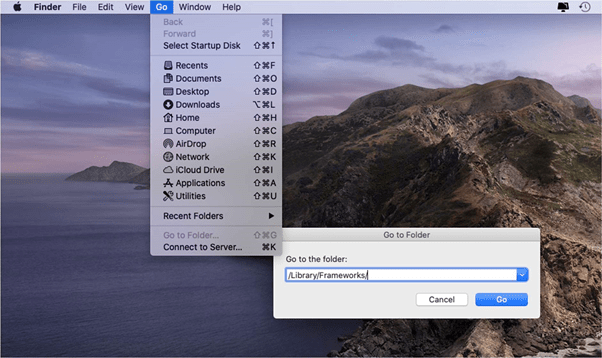
1 of 3: Open Finder: Go to Frameworks
a. Open Finder.
b. From the Finder menu bar click Go > Go to Folder
c. Type or copy/paste this: /Library/Frameworks
d. Click Go
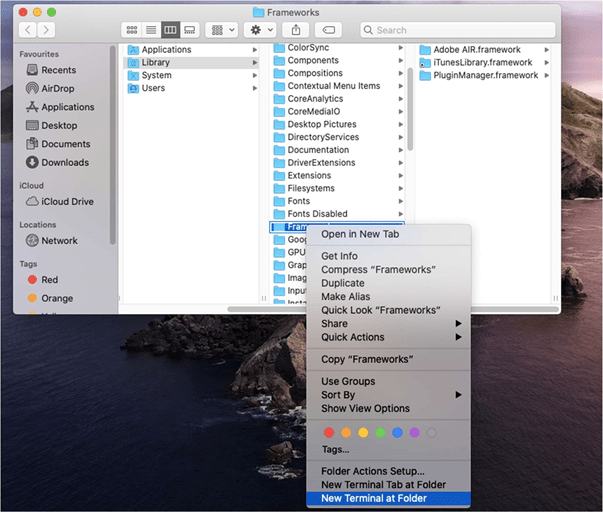
2 of 3: Open Frameworks in Terminal
a. Right-click on the Frameworks folder
b. click on "New Terminal at Folder"
This will open a new Terminal window. It should look something like this:
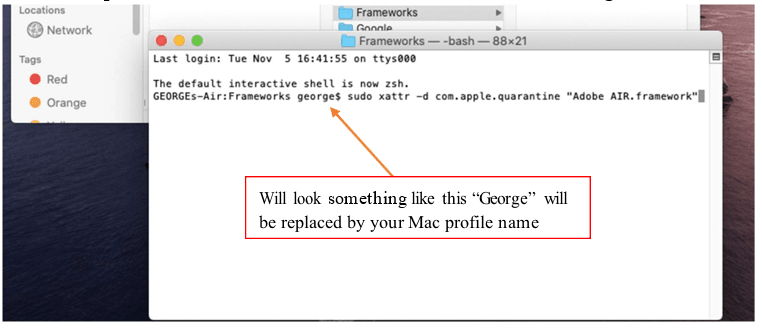
3 of 3: Remove Quarantine Bits
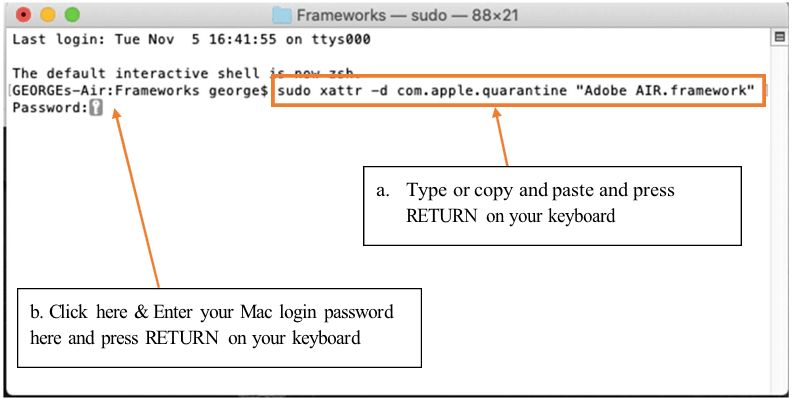
a. Type or copy and paste: sudo xattr -d com.apple.quarantine "Adobe AIR.framework" and press “RETURN”
b. Enter your Mac login Password when prompted and press “RETURN”.
→ Once this has been done you are now ready to install DentalPlus
¶ Update DentalPlus on Windows
DentalPlus system is constantly updated and improved.
Once the pop-up ‘ Update is available’ appears click ‘Update’ button.
New version of the program will be installed on computer.
¶ Update DentalPlus on Mac
If you are running MacOS Big Sur, you must update to version 11.0.1 or above
1) If the update works but you get an error that the application is from an unknown publisher:
- Try moving the DentalPlus Client.app file from your Applications folder to your desktop.
- Make sure you hold down the cmd key on your keyboard and drag the app to move it.
- Once moved, right-click the app on your desktop and choose open, then click open on the warning dialog.
2) If the built-in update fails or you are installing from scratch, please follow these instructions.
- Download the latest version from here 3.6.29 - download link
- Move the DentalPlus Client.app from your downloads file to your desktop
- Right-click the app and choose open
- Click ‘Open’ on the warning dialogue
You should now be up a running with the latest version.
¶ Imaging Bridge
The Imaging Bridge enables seamless connectivity between DentalPlus and Practice's imaging software. With just a click, you can open a patient's file in the imaging software directly from Dentalplus.
DentalPlus can link to the following imaging systems...
| Acteon | ApexNRG | Cliniview | DBSWin / VistaSoft | DentalEye | Dexis |
| Digora | Dr Suni | DTX Studio | EasyDent | Examine Pro | EzDent-i |
| iCat | iDixel | Mediadent | MyRay | Romexis | Scanora |
| Schick | Sidexis | SOPRO | Trophy (Carestream) | Vixwin |
If you need to use a system not on this list, we can usually add a link at no extra cost.