¶ General information
The communications section includes ways for interacting with patients by email, SMS, and postal mail. It also allows you to save personal and imported files and keep track of the documents you've sent.
Go to the Patient Record (1) → Communications (2)
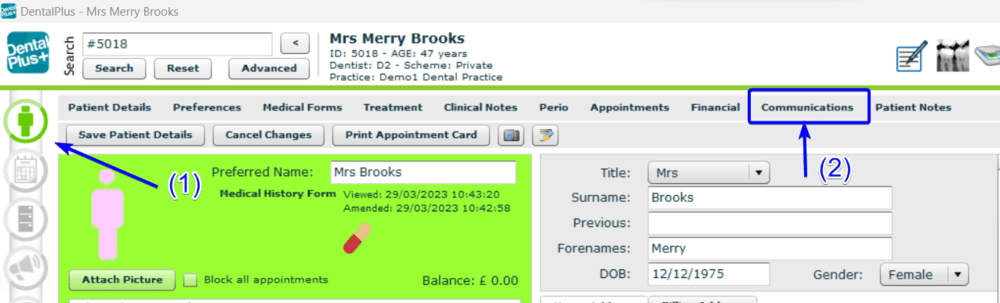
Communication tab consist of 6 sections: New Email, New letter, New sms, Sent documents. Received docs, Imported files.
¶ New Email
This section allows to send email to the patient.
Left click on the ‘New Email’ button opens a blank email window.
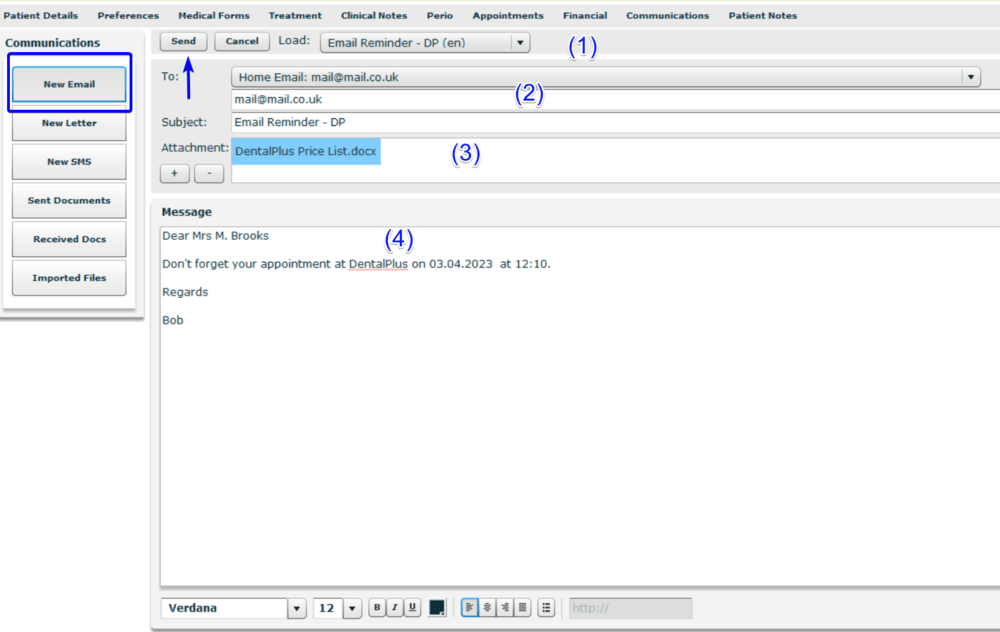
(1) Choose the template of the email from list of available Email templates.
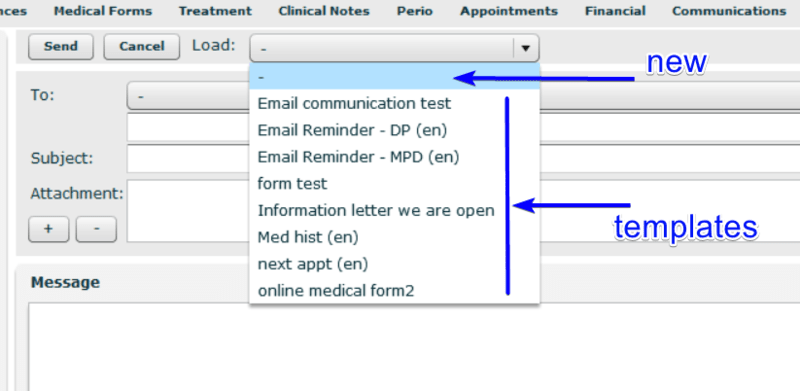
Or type new message.
(2) Use patient email address or add new one
(3) Add attachments if it is necessary
(4) Type or paste message .
(5) Click ‘Send’. The patient will receive this email immediately.
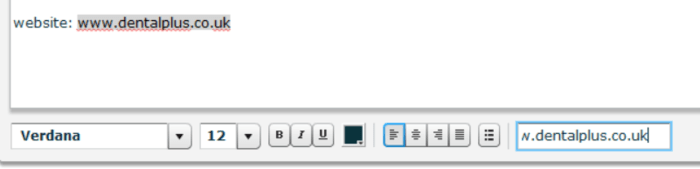
** Clickable link can be added to the email. Just type web or email address, select it and add into the http// edit box at the toolbar
¶ New Letter
Left click on the ‘New Letter’ button opens a blank letter window.
A new letter to the patient can be created in 3 ways.
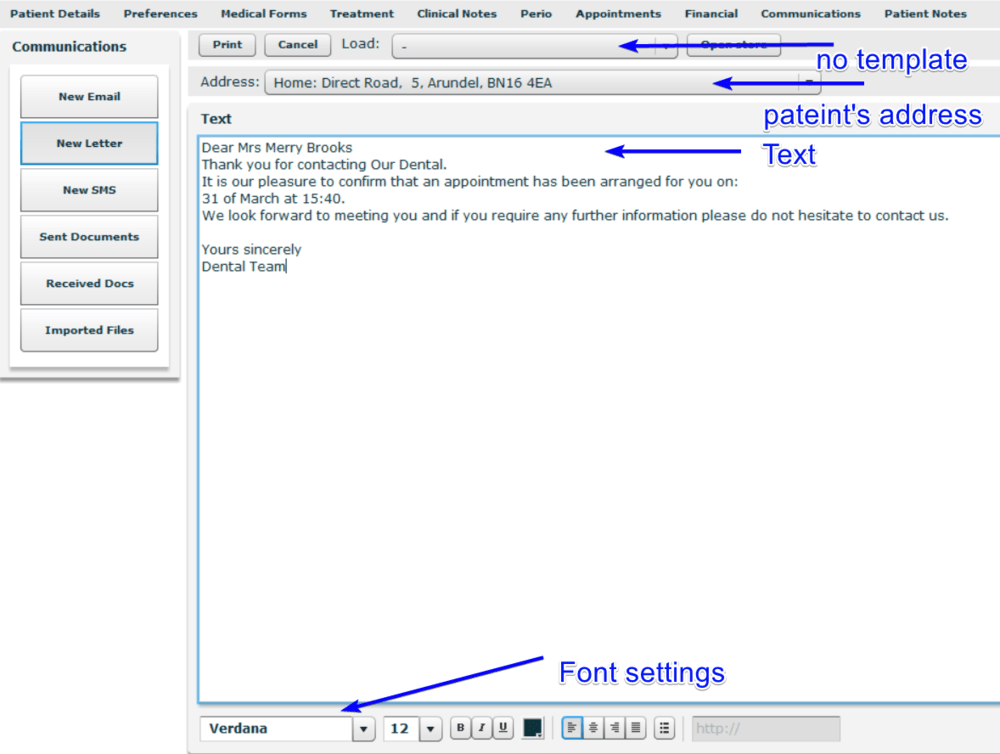
1.Text-editor box
A new letter can be created using text editor box. Any text can be typed or pasted in it.
Font toolbar will help with changing font and text settings.
2. Letter template
Letter templates can be used for a new letter.
1) Choose template in the drop-down ‘Load’
2) The template text appears in the Text-editor box
3) Make adjustments to the text if needed.
4) Print letter. The letter will be opened as PDF-file in the external window .
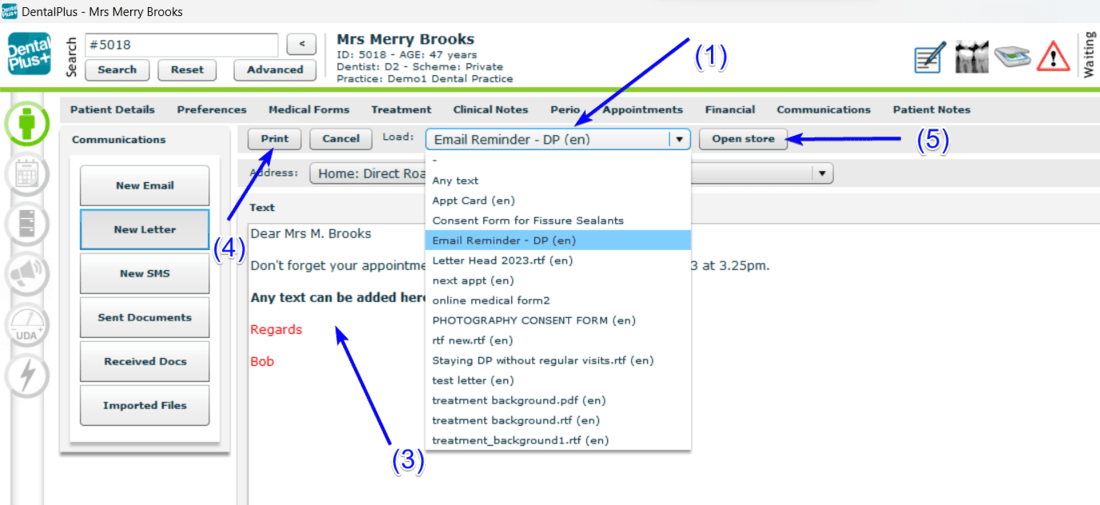
(5) Store is a place where all patient files are kept. It consists of patient folders with files related to the record.
DentalPlus has Store folder if physical server is used in the practice. All users have access to this folder .
You will not have access to Store using hosting server.
*** You can find information about how to add or change letter template in the ‘Admin→Documents’ help-article.
3. RTF-template
Any letter file can be created using Word and saved as .RTF file.
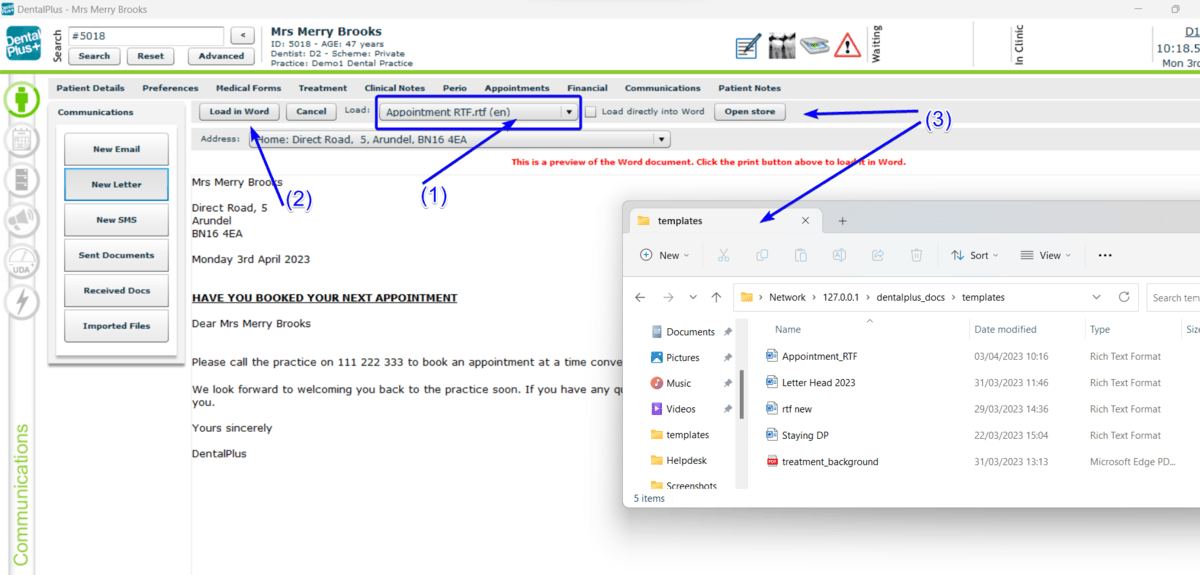
(1) Choose template in the drop-down ‘Load’ . It will have .rft in the file name. The file will be loaded in Word if the field ‘Load directly into Word’ is ticked
(2) Left click on the button ‘ Load in Word’ opens template file in Word for amendments, changes and printing.
(3) ‘Open Store’ button opens the folder with RTF templates. Any RTF-template can be created, saved and pasted here.
*** ‘ New letter ’ functionality allows to complete different forms on the tablet. You can find this information in the ‘Using tablet’ help-article.
¶ New SMS
Texts can be created for patients in Patient Record →Communication
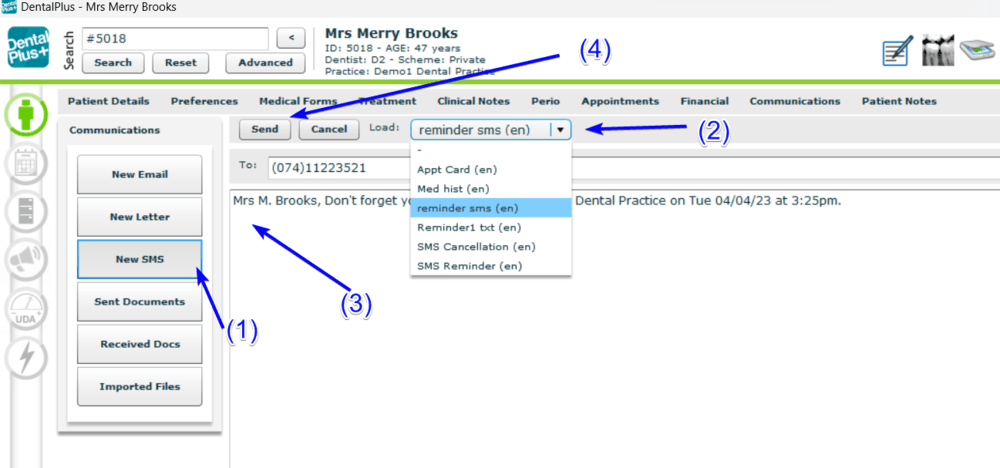
(1) Single left click ‘New SMS’. A blank SMS window will load.
(2) Create new SMS with template . Single left clicking on the ‘Load’ drop-down to produce a list of available SMS templates. Single left click on the SMS required and a preview will load.
(3) Or create SMS from scratch in the Text-editing box. Remember : 1 text credit= 160 characters.
(4) Once you are done with making adjustments to your dental Sms single left click “Send”
*** You can find information about how to add or change SMS template in the ‘Admin→Documents’ help-article.
¶ Sent Documents
‘Sent Documents’ functionality contains a list of documents (letters, e-mails, sms) sent through DentalPlus to this patient.
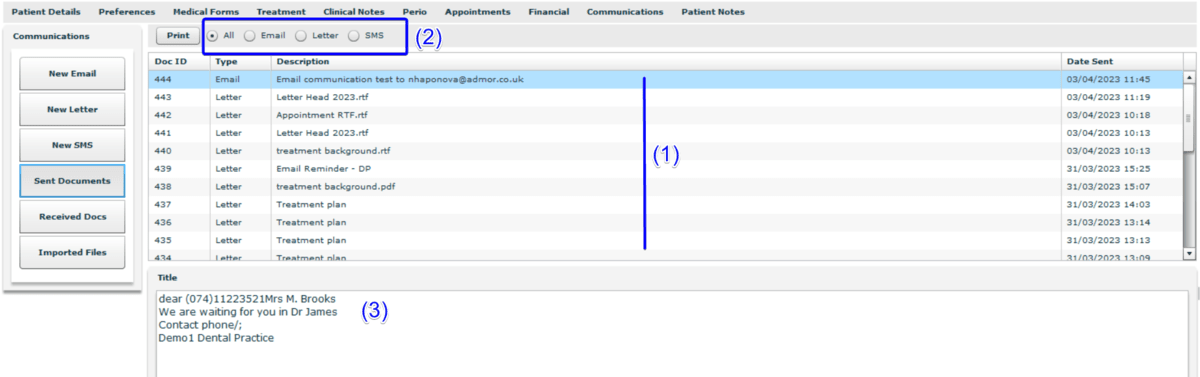
Double click on the file in the list (1) opens this file in
- preview window - for Sms and E-mails (3)
- Word - for RTF files
- PDF viewer - for treatment plans, invoices and other .pdf files
Also, you can filter the list of documents by type (2) and check the date of its creation
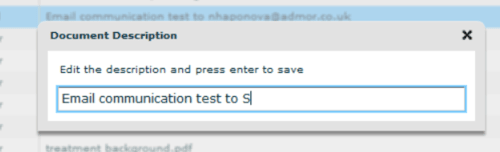
*** You can edit a document description by Right-click on the file.
¶ Received Documents
‘Received Documents’ is a list of Sms received from this patient as a reply on practice's SMS.
It has the same functionality as ‘Sent Documents’
¶ Imported files
‘Imported files’ functionality gathers external files related to the patient record: x-rays, prescriptions, e-mails and etc.
These files can be added by importing and scanning.
How to import files:
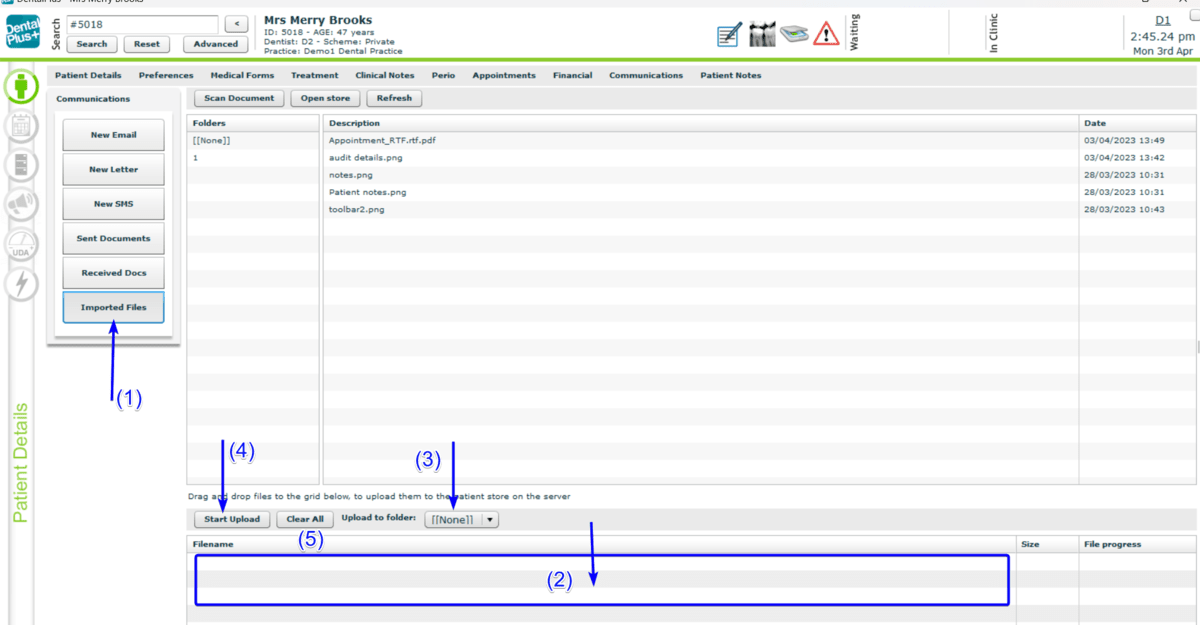
- Go to Patient Record → Communications → Imported files
- Select any file and drag and drop it to the grid area.
- Choose the folder where the file will be saved in . None - current patient folder, Other - sub-folder in the patient folder.
- ‘Start Upload’ for processing file importing
- Left click on ‘Clear all’ button cancels importing.
- Left click on ‘Refresh’ button renew all imported files
¶ Scanning Patient Documentation
How to scan documents
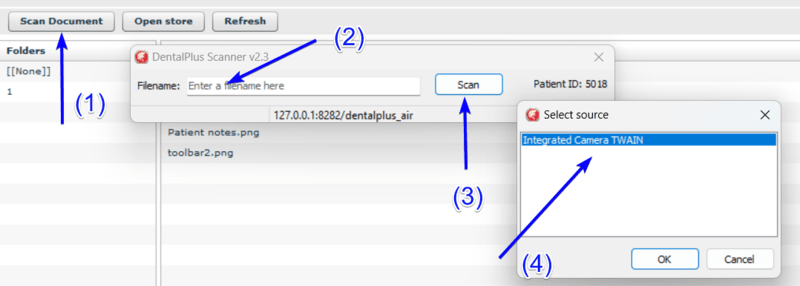
- Single left click on the ‘Scan document’ button
- Type the name of a created file
- Click ‘Scan’
- Choose source in the pop-up window and click ‘Ok’
Once scanned, the document will be stored in Patient Record > Communications > Imported Files. Here you can load the document when you need.
*** DentalPlus can use any Scanning source : scanner, web camera, intra-oral camera. This scanner should be plugged in and set up properly in the Operating System.