¶ General Information
Clinical notes in dentistry are detailed and organised records of a patient's oral health evaluations, treatments, and progress. These notes are critical for keeping accurate patient histories, assisting with treatment planning, simplifying communication among dental professionals, and providing the best level of care throughout the patient's dental journey.
Access to Clinical notes:
- Patient Record →Clinical notes tab
- Patient Record →Patient notes tab → Show clinical notes
- Patient Record →Treatment → Clinical notes tab
Clinical notes are arranged in descending order. A click on the table header will change it. Simply restart the application, and everything will return to normal display.
¶ Adding clinical notes
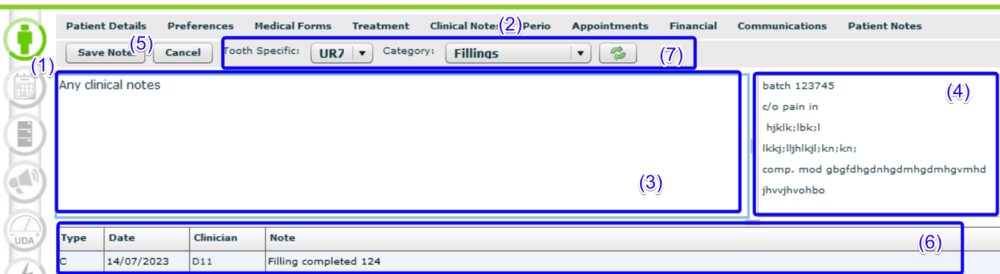
1. Go to the Patient Record (1) →Clinical notes (2)
2. Click the “Add New Note” button
3. Add a clinical note
- Type a note in the text box (3)
- Double-click on the appropriate clinical notes template (or sequentially for several) to create a note. This will move it into the text area for editing. (4)
4. Save a note (5)
5. A note will be saved to the note history (6)
Using a toolbar (7), you can specify the tooth and select the template category.
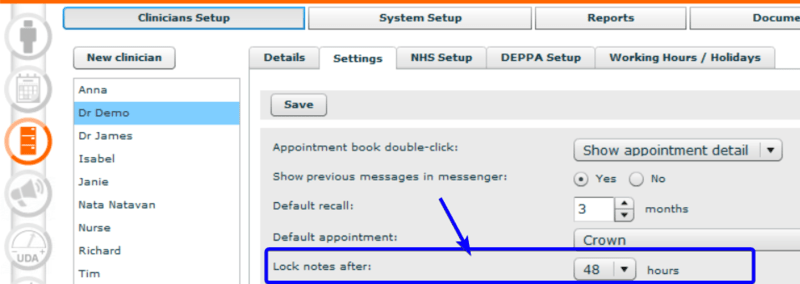
Clinical notes can be changed or removed up to 96 hours after they are created. After this period, no modifications can be made to the note. You can change the time under Admin → Clinician Setup.
¶ Editing clinical notes
In the Patient Record→Clinical notes
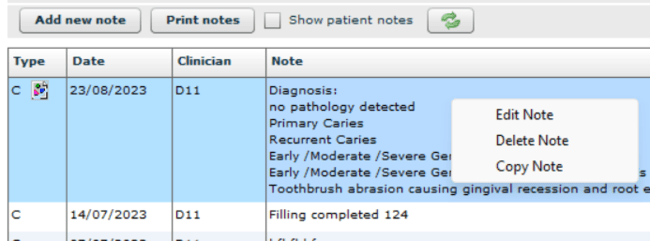
1. Right-click on the note and choose “Edit Note” from the context menu
2. The note will appear in a text box. Edit as needed and click "Save Note"
¶ Deleting clinical notes
In the Patient Record→Clinical notes
1. Right-click on the note and choose "Delete Note"
2. A pop-up will display, asking you whether you are certain you wish to remove the note. Select "Yes".
3. The note will be erased from the clinical notes.
¶ Printing clinical notes
DentalPlus allows users to print, email, or save clinical notes.
In the Patient Record→Clinical notes
1. Click the ‘Print notes’ button
Patient notes can be included by ticking ‘Show patient notes’
2. The pdf file containing notes will be generated and opened in the browser.
3. On the tool panel, click either 'Download' or 'Print'.
.png)
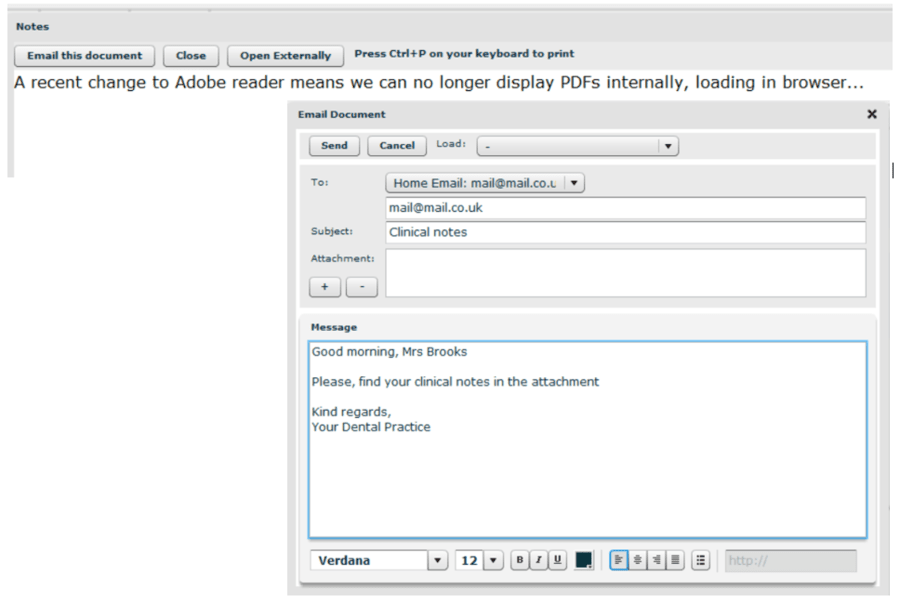
4. Return to DentalPlus to email this file to the Patient by clicking ‘Email this document
¶ Clinical notes templates
Clinical note templates play a vital role in streamlining dental practice workflows by providing structured, ready-to-use formats for common treatments. They reduce the time spent on manual documentation while ensuring that all essential clinical information is consistently recorded.
The template’s location: Admin → System Setup → ‘Clinical notes’
All templates are organised into categories.
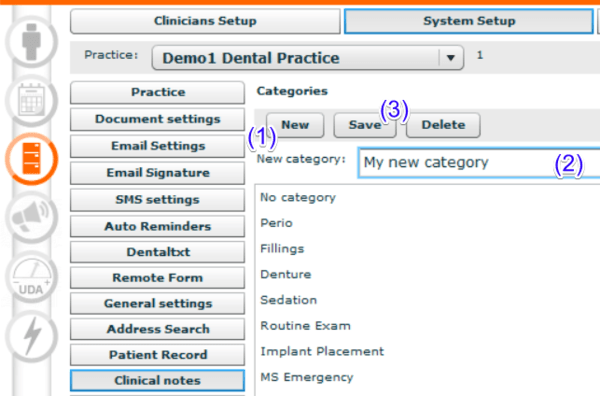
How to add a new Clinical Note category…
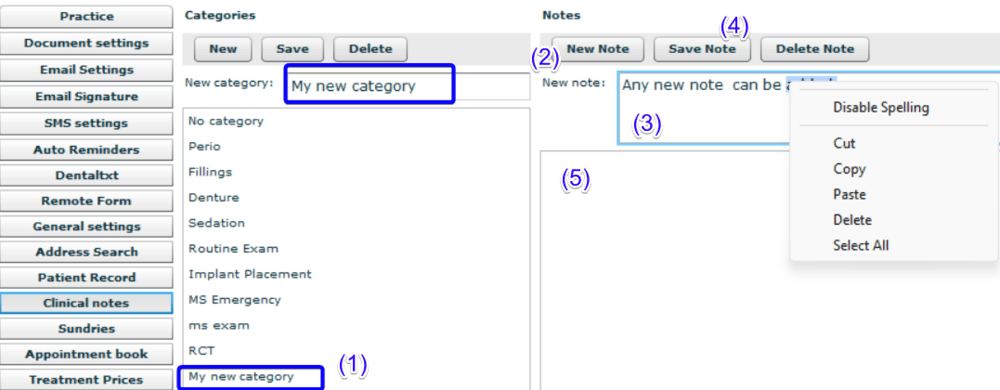
(1) Under “Categories”, select “New”
(2) In “New Category” enter a category name
(3) Click “Save”, and it will be added to a category list
How to add a new template…
(1) Select the category from the list where the new note is to be saved. An existing category name will appear in the ‘New category’
(2) Click “New Note” under the Notes area
(3) Enter a required note In the “New Note” editor, use copy and paste if necessary.
(4) Click “Save Note”
(5) The note will be added to the category and displayed in the list.