Dental recalls are an effective way to remind patients to schedule their next check-up or re-engage those who haven’t visited for some time. They play a vital role in maintaining ongoing relationships with patients and supporting consistent oral health care.
Sending recalls involves three steps: 1. Create a document to send, 2. Run a report to identify patients whose recalls are due, 3. Send messages or documents.
All patient recalls must be updated regularly.
¶ How to keep Recalls up to date
Keeping recalls up to date is critical because it allows you to communicate with patients with no upcoming appointments. To check this, simply run a report ‘Recalls passed' in the Appointments section and update patient's recalls.
To keep recall dates accurate, users can either:
1) Regularly review the Recalls section whenever a patient record is opened and update it if necessary.
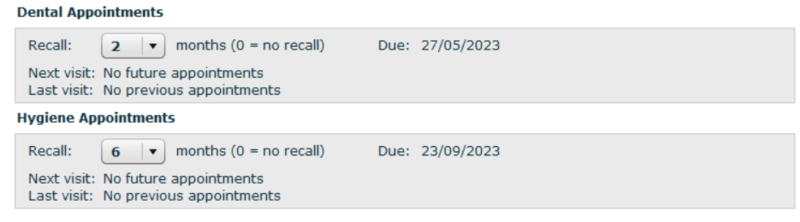
According to the settings below, the patient will be contacted using their preferred contact method via the Practice Recall report in two months for the dentist and three months for the hygienist.
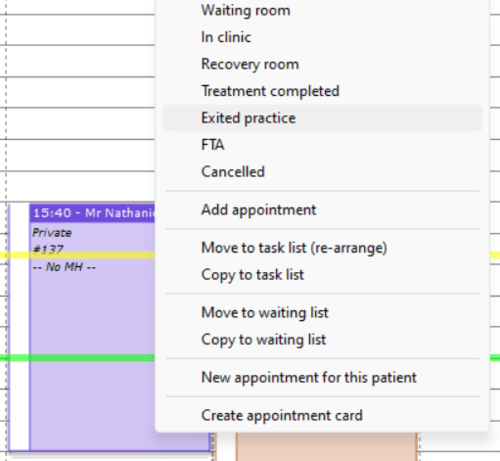
2. After completing treatment, update the appointment status to "Exited Practice" in the Appointment Book and “Update Recall” in the pop-up window
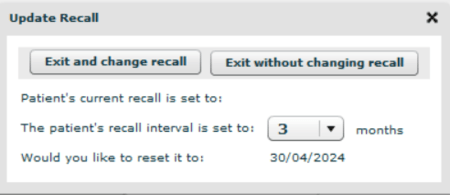
It is critical to ensure that the recall interval is correctly specified and not set to zero, as this allows you to communicate effectively with your patients..
¶ Create a document to send
To begin, you need to create the documents that you will send to patients.
- Navigate to the Admin section and then click Documents at the top of the page.
- If you do not already have a recall document (also known as Recall SMS or Recall Email), click the New Document option.
- Tick Email and provide a name, such as Dental Recall Email. In the Category dropdown box, select Recall.
- Enter the message you want to send to the patient, and then click "Save Document."
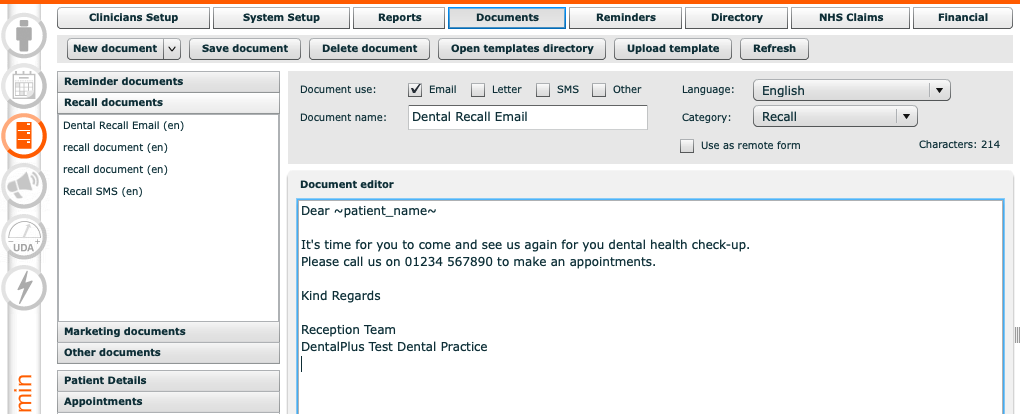
Once you have both documents, head to the reports section.
¶ Recall report
The DentalPlus system includes several Recall reports located in the Appointments section of the Reports:
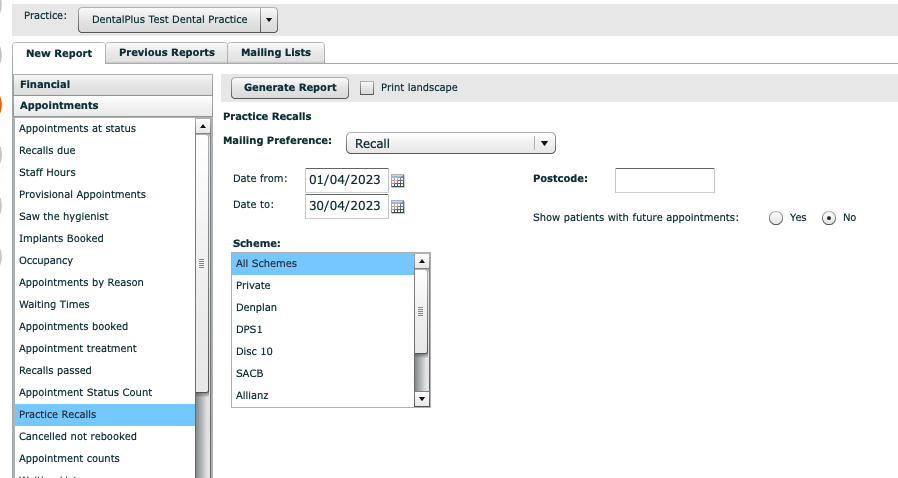
- Practice Recalls - one recall per patient if they have a dentist and a hygienist recall due at the same time. It also allows to choose date and scheme.
- Recalls due - all patients with recalled dates . A user can choose a clinician and a scheme if necessary.
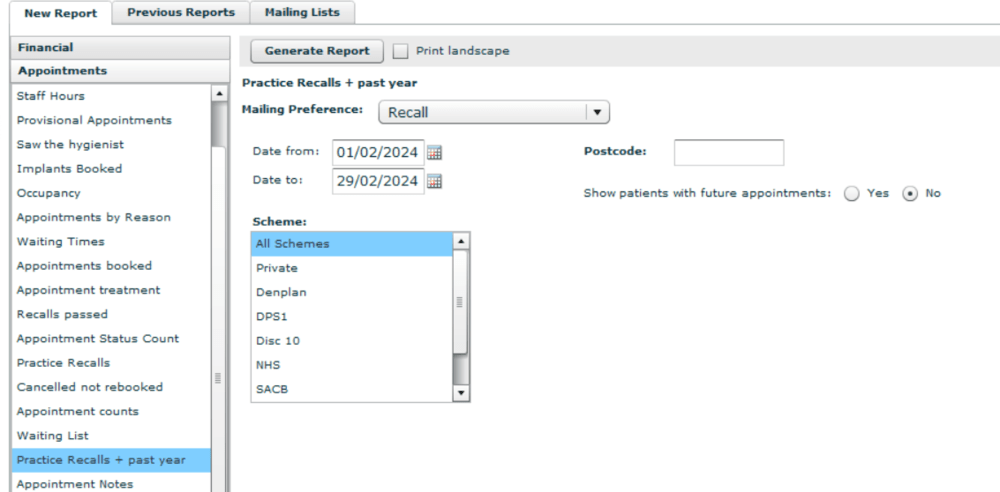
- Practice Recalls + past year /1 month prior /2 months prior / 3 months prior - all practice recalls and patients with recalls in the past 12 months. It helps to find patients that might have been missed and have an outdated recall date
- Practice Recalls Dentist / Hygienist - all patients with recall dates for a specific type of clinician.
- Select a report
2. Enter the first day and last day of the month, usually the month ahead of now, to find patients with a recall due during that time.
3. Click Generate Report
4. A report results box will display.
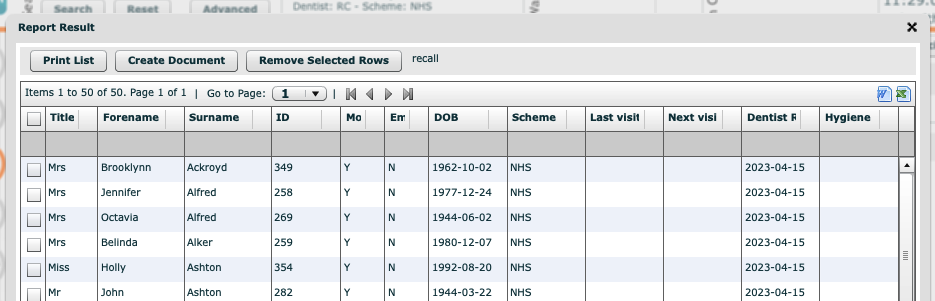
*** You can remove a patient from this list by clicking the tick box next to their name on the far left and “Remove Selected Rows”.
6. To start with sending recalls, click a “Create Document” button.
¶ Sending Documents
*** Recalls will be sent through the patient's preferred method of contact. If the patient hasn’t designated a preferred method, the recall will automatically be sent as a text message, provided there is a mobile number on records.
.png)
In the Email Doc and SMS Doc at the top, choose the documents you created earlier.
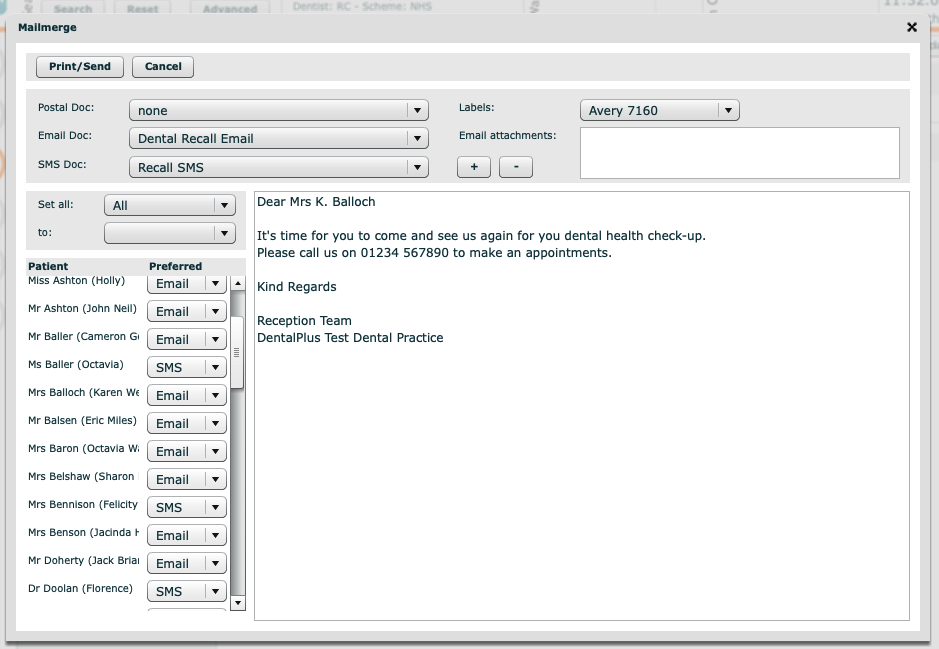
You can add Email attachments
If you are sending a recall via email, you can add an attachment by clicking a ‘ + button’'.

Locate the necessary file and attach it by clicking "Open." The name of the document will be listed in the box.

You can override the preferred method of contact
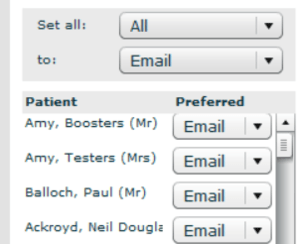
If you want to send all recalls using an approach that overrides the patient's preferred method of contact, select "Set all" and then the appropriate format.
Click in the "to" box to produce a list of methods in which you want the recalls to be sent ns select it
Before sending, do not forget to preview it
To preview the document that will be emailed, click on the patient's name. A document preview will be displayed.

When you're ready, click the Print/Send button. All SMS and emails will be addressed directly to the patient. All letters will be directed to your printer.
¶ Recalls Success
With a specific report, you can observe how the 'Recall' functionality benefits your practice. "Recalls success" will list all patients who scheduled appointments within two weeks of receiving recall notices. Simply enter the dates and generate the data.
¶ Recalls passed
It is crucial to ensure that the dates of recalls are kept up to date. The following reports will help with it.
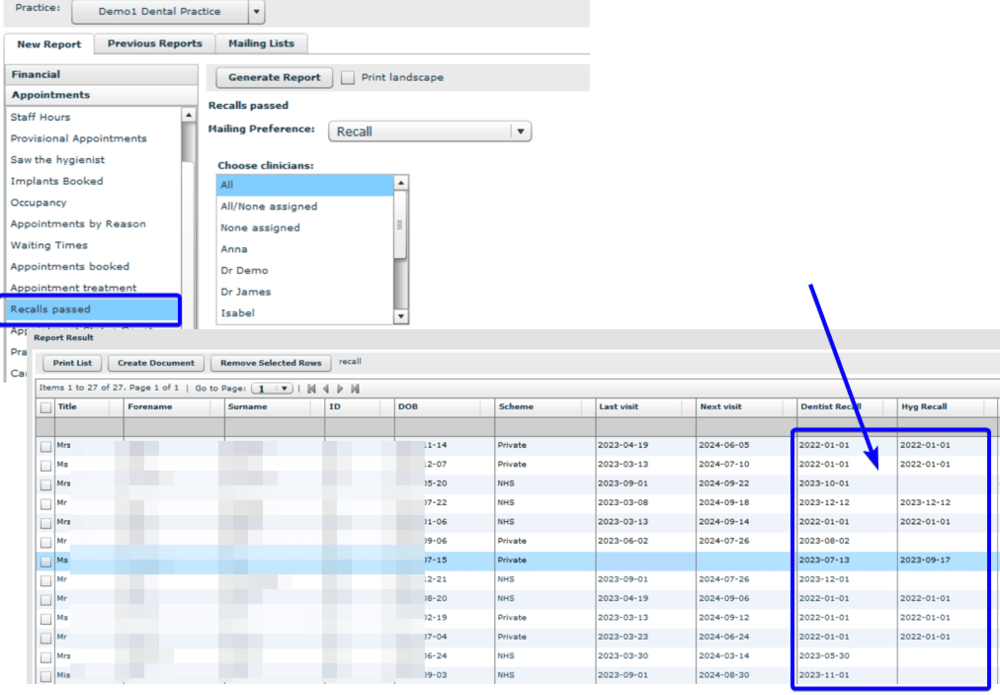
1) The 'Recall Passed' report shows all patients whose recall dates are past.
- Go to Admin Section → Reports
- Click on the ‘Appointments’ header
- Find and select the 'Recall Passed' report.
- You can choose a specific clinician or adjust mailing preferences.
- Finally, click on the ‘Generate Report’ button to view the results.
The report displays a list of patients whose recall dates are in the past, along with their Dentist and Hygienist recall dates. You can use this information to send bulk messages, contact them personally, or update their recalls in the Patient Record.
2) The 'Practice Recalls+past year' report displays all patients whose recall date is in the date range, as well as those whose recall date was within the past year and who don't have any future appointments. Also, you can choose a scheme or adjust mailing preferences. It helps to find patients that might have been missed and have an obsolete recall date.
- Go to Admin Section → Reports
- Click on the ‘Appointments’ header
- Find and select the 'Practice Report +past year' report.
- You can choose a specific scheme, postcode or adjust mailing preferences.
- Finally, click on the ‘Generate Report’ button to view the results.
The report shows a list of patients whose recall dates are due to the selected time period and patients whose recalls are in the past within the last year. This information can be utilized to send bulk messages, contact patients directly, or update their recall status in the Patient Record.