¶ How to sign FP17PR
Before starting an NHS treatment the patient must sign a FP17PR form as consent to being examined by a dentist and state any exemptions they have. FR17PR forms are stored in the Database and can be displayed and used by request.
- Go to the record of an NHS patient
- Click the ‘ Pen’ icon to display ‘Patient Remote Forms’
- Tick ' Sign FP17PR
- Choose the ‘Complete using’ device
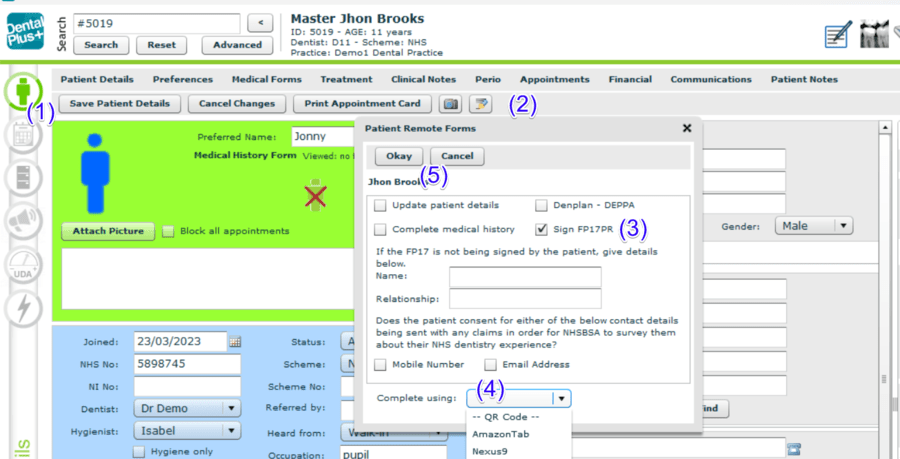
5. Click ‘Okay’ and pass the tablet to the patient
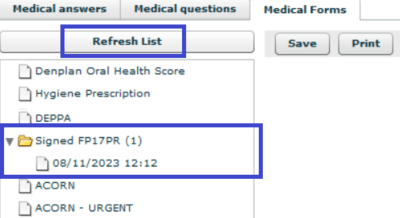
6. Once completed a signed form will be displayed in the Medical Forms → Signed FP17PR. (Click the ‘Refresh list’ button if needed)
¶ Submitting an initial FP17 form
FP17 form with various information related to the claim is sent to the NHS electronically.
- Go to the record of an NHS patient
- Open ‘Treatment’ section
- Start new treatment plan and add all treatments that are done
- Flag these treatments as having been completed.
.png)
5. Click on the FP17 button in the toolbar to view a pop-up
.png)
6. The system will generate FP17 form . Re-check all information and click ‘Submit’
- Options: initial claim
- Exemptions and Band
- Performer and their Contract number
- Decayed, Missing, Filled teeth
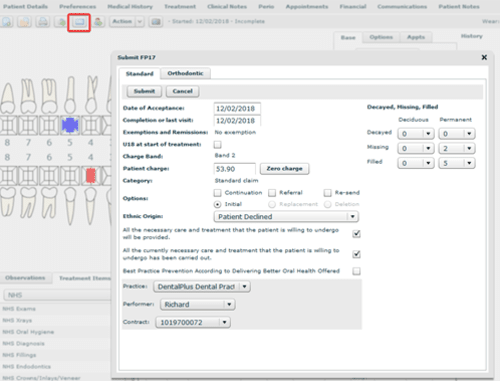
The claim should be submitted and will show up in DentalPlus Admin > NHS > Sent Claims. Read more…
*** If the form does not display the exception, check if it is present on the patient's record.

¶ How to make an urgent claim
1. Double-click on the item in the plan and tick the 'Urgent treatment' box.
All items in the plan should be urgent to apply it.
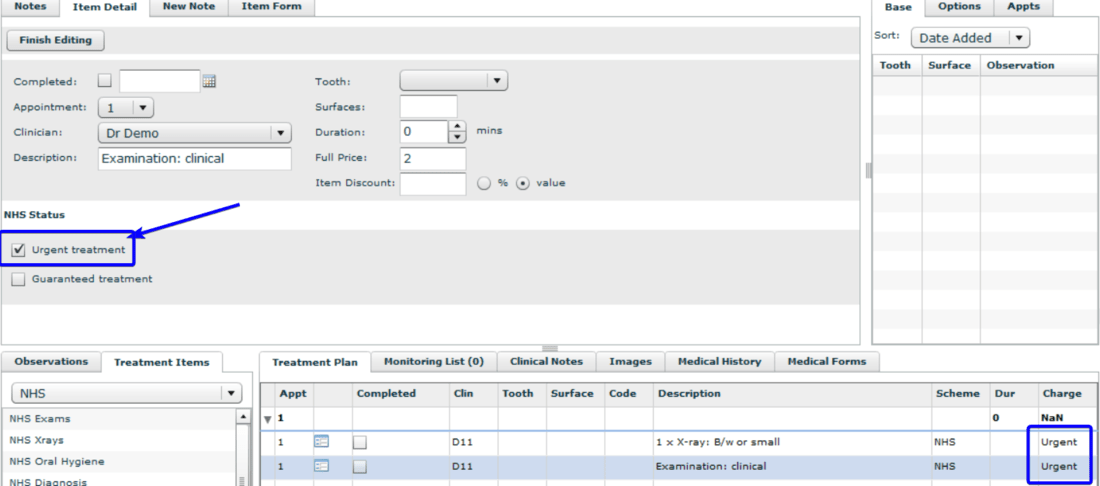
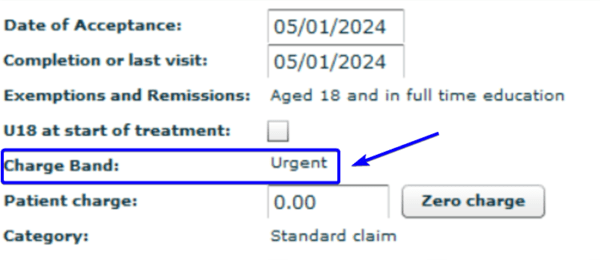
2. The charge band on the FP17 screen will say urgent
¶ Submitting a continuation of the treatment
Claims can be submitted as a continuation of treatment if the patient had treatment in the same band or higher and claimed it under the same NHS contract during the previous 60 days.
To send a claim for continuation of treatment:
- Complete prior plan treatments
- Begin 'New plan' with new treatments.
- Complete treatments and submit the FP17 form.
- The system classified this claim as ca ontinuation. The patient will not be charged for this.
- Click 'Submit'.

¶ Re-sending a Claim
The system identifies a claim as 'Re-Send' if it is submitted but not sent to the board. A practitioner can add additional treatments and submit the FP17 form. The final version of the claim will be ready to transmit.

¶ Claim Replacement
If the claim was sent to the board and some UDAs were received, but the practitioner needs to alter and resend it, the claim can be replaced.
1) Open the treatment plan that needs to be updated.
2) Adjust treatment.
3) Click 'Submit FP17'.
4) Select 'Replacement' in Options.
5) Click 'Submit'.

¶ Treatment on Referral
Work completed on referral adds the UDAs to practitioner’s contract but eliminates the patient charge, which will have been paid elsewhere.
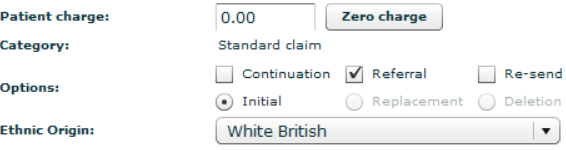
To send a claim as Treatment on Referral, submit it normally, and then select Referral in the Options and click the ‘Zero charge’ button.
¶ A claim deletion
In case of any errors, you can delete the submitted claim.
- Open the treatment plan that needs to be updated.
- Click 'Submit FP17'.
- Select ‘Deletion’ in Options.
- Click 'Submit'.

The assigned points will be deducted from your contract.
¶ Sending an Incomplete course of treatment
The practitioner can have a situation when the treatments have been completed partially. In this case, a few options can be used:
The first option:
- Leave any incomplete items on the treatment plan without the "completed" checkbox ticked.
- Click "Submit FP17". The system will automatically detect that there is an incomplete item of a higher band than the highest complete item on the treatment plan.
- ‘Incomplete Band ’ will appear on the form. Click on the drop-down and choose an appropriate band.

4. Choose what band to claim for
5. Complete claim as usual
6. Start a new plan before submitting a claim. The system will prompt you to move any incomplete items to a new plan.
The second option:
- Complete the necessary treatments and create a new plan with moving incomoleted treatments to it.

2. Open the previous plan

3. Submit the initial claim as usual.
4. Carry out the new plan for the next appointment. The system will recognise this course as a continuation of the prior plan and act accordingly based on the treatment band.
¶ Submitting Orthodontic Claims
Submitting an Orthodontic claim consists of two stages: ‘Assessment and start’ and ‘Completion’.
- Submit the ‘Assessment and start’ claim when the patient was assessed the first time.
- Submit the 'Completion' claim when the orthodontic course of treatment is completed.
If the treatment was abandoned, one of the two options of 'Patient Failed ' or 'Patient Request' should be chosen.
